
 Illustrated manualTEPS TriPrism
TEPS manual: general and sitting preferences
Original illustrated reference for General and Sitting preferences in TEPS TriPrism.
In this article
General and sitting preferences
GENERAL
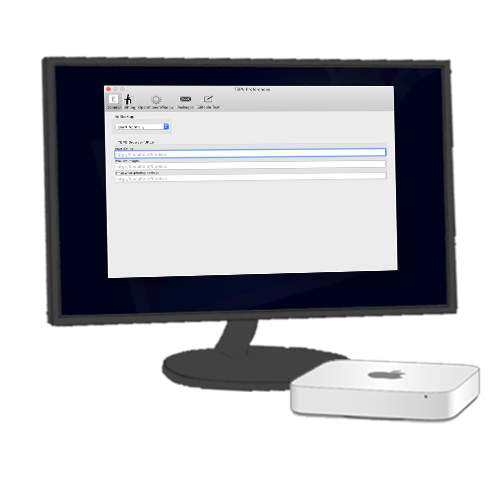
GENERAL PREFS
The general prefs set the overall settings for TEPS that help set the desired use and sets preferences for the overall use of TEPS.
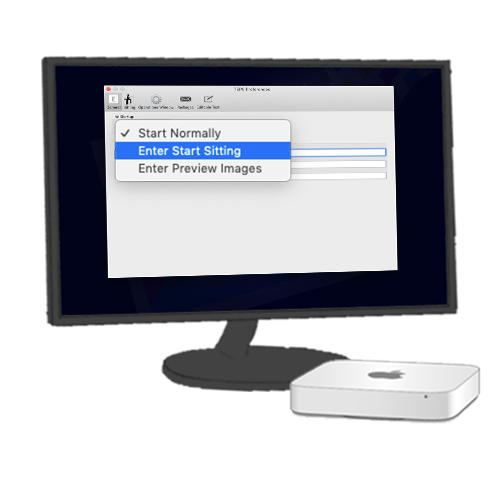
START UP OPTIONS
TEPS TriPrism offers the option on how you would like TEPS to start up.
Start Normally presents the user with the opening screen asking what they would like to do.
Enter Start Sitting automatically enters the sitting mode waiting for your photo entry method and ready to take photos.
Enter Preview Images automatically enters the preview mode where your photographer can select images to preview and print from file.
TEPS BROWSER URLS
TEPS TriPrism offers the ability to closely integrate with Bamboo Registration. Using the TEPS Browser option allows your customers to register on a tablet device, then your photographer can pull the ID from TEPs Browser.
Start Sitting This URL is where TEPS pulls the registration ID from a URL. Often times, the URL will follow a similar pattern:
http://localhost:9090/registrationorders/photostationlist
Preview Images Once the photo has been captured, the next computer will preview the images. This can be accomplished by setting the browser URL. Often times, the URL will follow a similar pattern:
http://localhost:9090/registrationorders/poslist
Enter when printing package If your location does not participate in pre-registerring using TEPS, but you still Text or email, then there is a strong likelihood you use the following URL:
http://localhost:9090/tepsregistration
! CAUTION
This feature requires the use of Bamboo. Learn more about Bamboo HERE.
If your location uses Bamboo on a separate server computer, you will replace 'localhost' with the host computers IP address OR sharing name.
SITTING
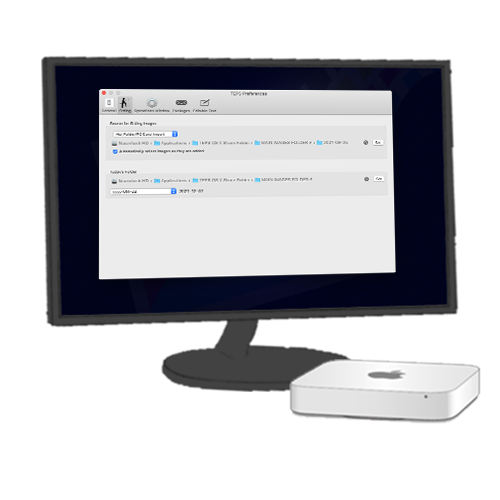
SITTING PREFS
The sitting prefs set the sitting folders for the hot folder and for the main images folder for TEPS TriPrism. The daily sitting folder can be modified to fit various sitting name needs.
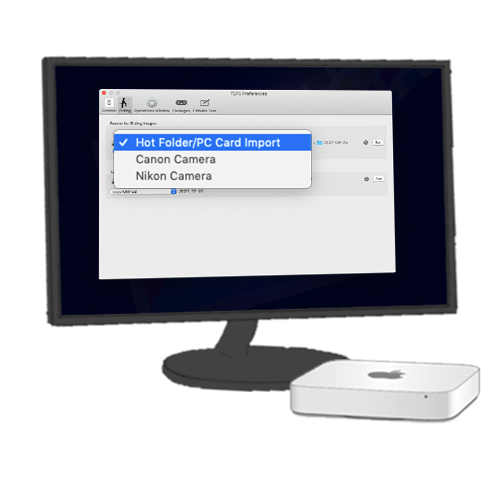
SOURCE FOR SITTING IMAGES
This preference sets the preference for how images are acquired. TEPS TriPrism supports PC Card Import, Camera Hot Folder, using TEPS CanonCapture, or using TEPS Nikon Capture.
We recommend always setting the the Hot Folder Path (if not otherwise used) to the following path:
/Users/Shared/TEPS HotFolder
If you are using third party hot folder software; you can set the hot folder to match your third party software's source image folder so the images load into TEPS.
START SITTING OPTIONS
Automatically select images as they are added If this option is selected, then each image will drop into the main preview window as it is loaded into TEPS. This is recommended to be turned OFF when loading froma camera / pc card volume.
If using "Canon Camera" or "Nikon Camera" the Automatically run camera control app preference shows. This preference will automatically open the TEPS CanonCapture / TEPS NikonCapture software when TEPS enters Start Sitting.
If using "Canon Camera" or "Nikon Camera" the Automatically RE-launch on crash/quit preference shows. This preference will automatically re-open the TEPS CanonCapture / TEPS NikonCapture software should it quit for any reason.
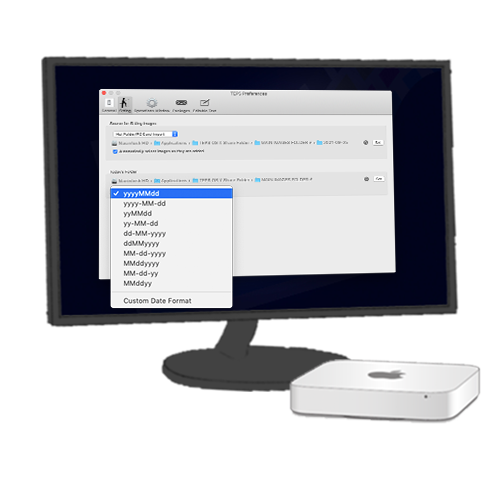
SETTING THE DAILY FOLDER
The Main Images folder needs to be set. This is the folder that will contain all the original images that are imported into TEPS TriPrism.
We recommend always setting the the Main Imgaes folder to an easily accessible path such as:
/Applications/TEPS OS X Share Folder/Main Images
If your computer is networked (where one or more computers access the main images folder simultaneously); We recommend creating a shared folder (under the shared user account) and always setting the the Main Imgaes folder to a folder designed to be shared such as the following:
/Users/Shared/Server Shared Folder/Main Images
NAMING THE DAILY / CUSTOMER FOLDER
In some instances, you may wish to make the images go into a custom sitting folder names for easy organization.
The sitting folder name can be customized using multiple options. To adjust how the sitting folder names the folder that contains the images; click "Edit..." Then drag your tokens to the dark grey to adjust how sitting folder is created.
If no option is set, the images will be saved to the Main Image folder with no enclosing folder.
We recommend using a daily folder format so that images are arranged in a dated folder for event photography such as the following
"Year"-"Month"-"Day"