
 Illustrated manualTEPS TriPrism
TEPS manual: installation and setup
Original illustrated instructions for installing TEPS TriPrism and preparing a workstation for production.
In this article
Installation and preparation
Complete illustrated manualThis original TriPrism documentation is retained in full. Version-specific screens and historical behavior remain labeled in the guide.
IMPORTANT NOTES
Upgrading From TEPS(32)Exisiting TEPS X Share installations should be backed up and archived in a safe area before installing TEPS TriPrism. Rebuilding TEPS(64) has been a long journey that has involved re-imagining the experience.
ALL existing templates, chromakey templates, nodes, and graphics will need to be re-created.
Downloading & Installing TEPS

Download or Upgrade
TEPS APPLICATIONS

Apple's Gatekeeper
May Prevent Installation

First Time Opening
Right Click and Open
About the Installer & How to Upgrade
Installing TEPS?
Installation Information
Upgrading TEPS?
Installation Information
Preparing for Operations
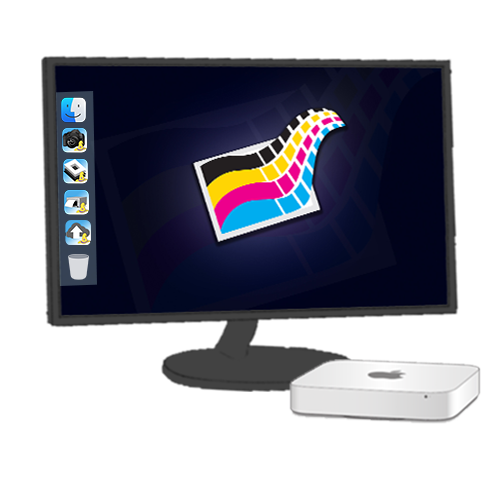 Prepare your Dock
Place TEPS Applications in the dock
If you use your computer mainly for TEPS, we recommending dragging TEPS-X Share, TEPS Processor Share, and the TEPS Print Center Share to the dock for easy access.
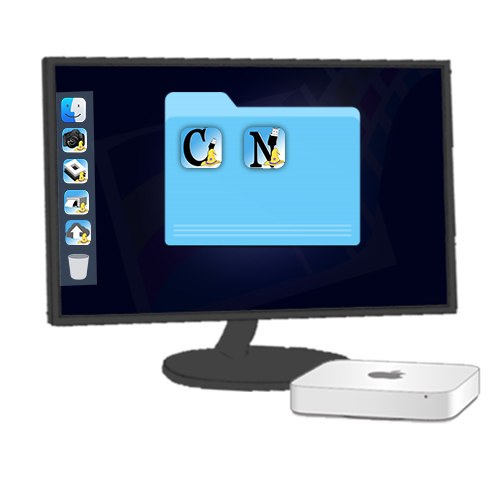 Launch Helper App
Launch Helper app one time
If you use direct connect through the TEPS Canon Capture app or the TEPS Nikon Capture app, you should launch the app one time initially after installation.
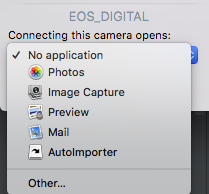 Turn off Photos App
Prevent Photos app from Opening
When you insert a PC card or connect a camera, Apple's "Photos" app attempts to capture the input. To avoid this, we can help you turn off the ImageCapture plugin.
Activating TEPS
Currently, all activation for TEPS TriPrism occurs on the server side. You will need to contact TriPrism support to activate, deactive, or change licenses.
Did this article solve the issue?I still need help →