
 Illustrated manualTEPS TriPrism
TEPS manual: operations window
Original illustrated reference for configuring and operating the main TEPS production window.
In this article
Operations window settings
OPERATIONS WINDOW
OPERATIONS WINDOW
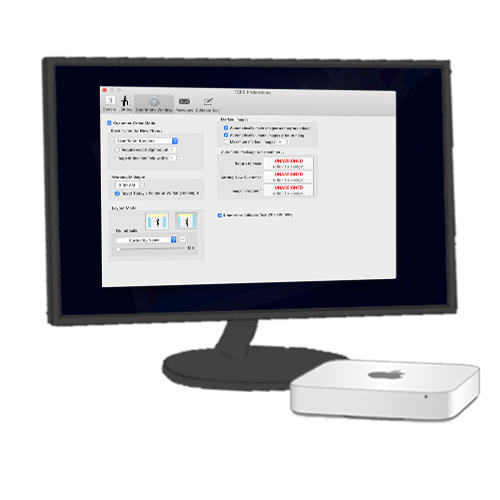
The operation window controls how images are named, how they are displayed, and other operating tasks such as automatic printing.
CUSTOMER ORDER MODE
TEPS can be used either in Customer Order Mode or without customer order mode. The difference is whether each "Sitting" is unique to the customer or non-unique.
For instance, if a portrait photographer has many unique "groups" or "sittings" and it would be beneficial for a portrait photographer to go back and identify their "Sitting." In this instance, the photographer could opt to have "Customer Order Mode" turned on. This enables the use of BarCode / QR Code / RFID / manual entry of a customers code.
There may be other instances where photos may be captured, but naming the photos is not as important. This may be for like trade shows / open floor events where images land, but keeping track of particular clients is not important. In this instance, a photographer may opt to turn off "Customer Order Mode" and allow the images to be named a unique file format. There's also an option to regenerate the base file name for each customer so that each photo has a unique file name.
★ DID YOU KNOW?
Using TEPS Triprism, combined with PT CheckOut / PT Microsite you can create qr codes that embed urls? Use the following format when generating your QR codes for a truly unique experience!
FOR PT CHECKOUT USE:
http://ptiphotos.com/shop/ACCOUNTNAME/CODEHERE
FOR DIGITAL DOWNLOAD IMAGES USE:
http://ptiphotos.com/ACCOUNTNAME/CODEHERE
BASE NAME OPTIONS
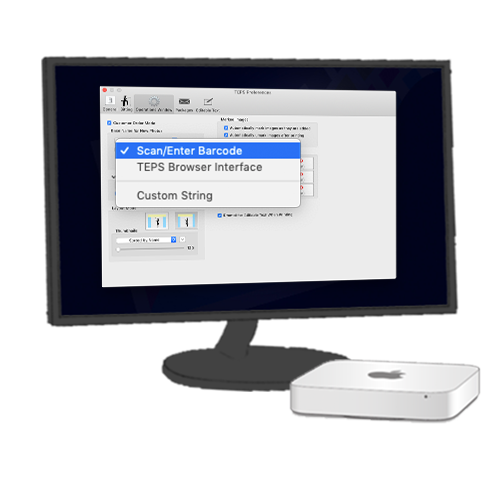
There are three unique base name options that can be used when generating new images.
Scan/Enter Barcode is primarily used when "Customer Order Mode" is enabled. With this option selected, every "sitting" has a prompt to scan or type in a barcode / qr code.
TEPS Browser Interface is used in conjunction with Bamboo registration. When customers register using Bamboo, TEPS can acces the registration information to take the photo and then can be used to recall the photo to preview and print it in a sales capacitiy.
For instance, there may be a registration station, where customers enter their name, email address, and phone number; then a photographer station where a customer has their photo captured; and then there may be preview / print stations after where a customer can have their images printed on site. In this scenario, customers register, then at the Photographer station, the photographer simply selects the customer from a list of registered individuals; and then once done, the the preview station can pull the images after they were captured - all by selecting a name on the screen, instead of using bar code / qr code.
Custom String You can use "Custom String" option to generate random code assignments for each group. Using this method, you can assign various options using drag and drop tokens like random number, year, month, day, second, milisecond, original file name, and more. These tokens can be used in combination with namually entered text or other options to generate unique file names for each image.
ADDITIONAL BASE NAME SETTINGS
In addition to naming the image you can also set other variables to make sure your image naming criteria are matched.
"Require exact digit count" is an option that allows your file names to match an exact number of digits. This is beneficial in instances where you may require a set number of characters for a file name. When entering a new file name, the software will validate agains this requirement to make sure that the new photo code has this number of digits.
"Image Index min field width" is the minimum number of characters left when naming an image. Example: IMAGE_001 would have a image index min field width of "3" (note the two zeros in front of the 1. IMAGE_01 would have an image index field of "2" - essentially, it's the number of digits to count for image file name.
With Customer Order Mode turned OFF there is an option to "Regenerate basename for each image." With this option turned on; every time a new image is loaded into TEPS, the base file name is recreated. For Instance, if assign the base name to be Year + Month + Day + Minute + Second + Milisecond (YYYYMMDDMINSSmmmm) then, if you take a photo, the first YYYYMMDDMIN will match, but the SSmmmm will be different. This assures that each image has a unique file name. With the option turned off, all images would otherwise have the same file name YYYYMMDDMINSSmmmm; but they would index after _001, _002 etc.
WORKING MIDNIGHT
Many events operate on a rotating / daily basis and it's adventageous that every day the sitting folder move from one operating day into the next operating day. Some examples include Santa, Easter Bunny, Haunted Houses / Events.
In some cases, these events may remain open past midnight and it may be adventageous to set the working midnight to later in the day. This means that as images are captured, they remain in the current day's "sitting" folder util the working midnight time is met.
You can turn this option on or off and set the desired 'working midnight' time from here.
LAYOUT MODE
We have two layout modes. The difference is whether the thumbail window runs along the entire top (the option on the left); or if it ends where the print window / tool bar starts on the right hand side (option on the right).
There is also a slider to adjust the thumbnail size. Closer to the left, smaller thumbnail image size, then closer to the right; the larger the thumbnail image size. Most operations opt to size the thumbnail around size 200.
THUMBNAIL SIZE
There is also a slider to adjust the thumbnail size. Closer to the left, smaller thumbnail image size, then closer to the right; the larger the thumbnail image size. Most operations opt to size the thumbnail around size 200.
THUMBNAIL SORT
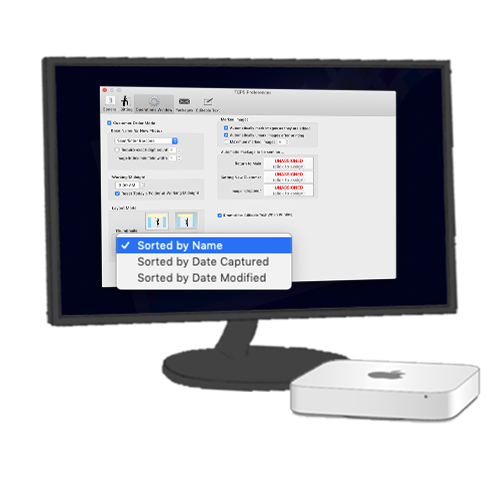
There may be a variety of reasons why you want images to sort differently when entering the thumbail window in TEPS. Currently, there are three supported modes:
Sorted by Name images are sorted alphabethically by name.
Sorted by Date Captured images are sorted chronologically based on the date/time the image was captured / imported into TEPS. (We recommend most operations use this method).
Sorted by Date Modified images are sorted chronologically based on the last date/time the images were modified (not recommended for most operations).
To the right of that drop down window you will see an up arrow / down arrow. The up arrow will set the sort order to ascending, where the down arrow sets the sort orderd to descending. One way searches in a forward pattern, and flipping the the arrow switches the defualt search order.
NAVIGATION BUTTONS
"Show Navigation Buttons" was a feature introduced in version 1.3.7 that allows you to have a jump to beginning, end, page right, or page left. Also included is a "jump to" section, and an add images from folder option.
SHOW IMAGES DROPDOWN
Introduced in version 1.3.7 there is an option to restrict the type of images you see in the Thumbnail window.
"All Image Types" will show all images regardless of if they can be printed or not.
"All Image Types Except RAW" will show all images types unless they are RAW images.
"Only JPEG" Images will only display JPEG images that can be printed by TEPS.
MARKED IMAGES
This section describes actions as far as how images should be checked (marked) as they enter the TEPS application
"Automatically mark images as they are added" places a check mark next to images as they are added to the thumbnail window.
"Automatically unmark images after printing" removes the check mark next to images after they are printed with either a canvas or package print.
"Maximum marked images" Allows you to place a limit on the maximum number of images that can be selected at any given time. This option can be used to restrict / control the maximum number of images that can be selected for digital download packages, print packages, or other packages where you may want to limit the total quantity being sent at any given time.
AUTOMATIC PACKAGE PRINTING
TEPS TriPrism can be configured to print specific packages during certain prompts or triggers.
Return To Main This trigger would occur any time the red "X" is pressed in the upper, left-hand corner of TEPS.
Setting New Customer occurs when "Comand + 1" is pressed, or a new barcode / qr code is scanned and a new 'setting' has started.
Image Dropped happens when an image is dropped from the thumbnail window into the preview/operation window.
Packages are selected by clicking on the button, then double clicking on your desired pre-built package. See "Packages" section for information on creating packages.
FULL SCREEN PREVIEW
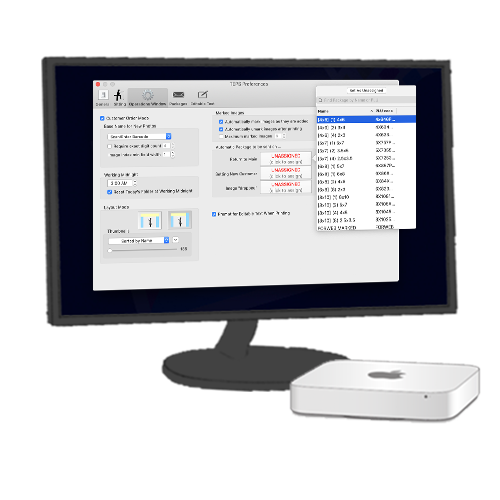
TEPS TriPrism can detect when a second monitor is plugged in and display images only on the external monitor.
External display receives live updates When enabled, what ever you have in your preview / operation window is reflected outward to the customer window.
External display hides when inactive Removes the preview when not actively previewing outward to customers.
ℹ INFO
Using two monitors allows your operator to look at one screen and your customer to view a different screen. One of the positives is that the customer only sees what you want them to see, not all your tools.
PROMPT FOR EDITABLE TEXT
When printing a preview template that contains editable text; you will be prompted to enter the editable text in the package window (Useful for things like Christmas Cards).