
 Illustrated manualTEPS TriPrism
TEPS manual: packages and output canvases
Original illustrated instructions for output canvases, printer choices, media, cuts, crops, finishes, effects, and package buttons.
In this article
Packages and output canvases
PACKAGES
PACKAGES WINDOW
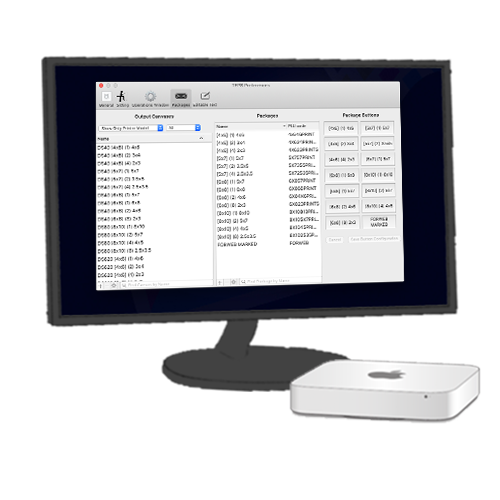
The Packages window is used to set up printing options with TEPS. The main use is to create output canvases are used to create packages that can later be used to set your package buttons.
OUTPUT CANVASES
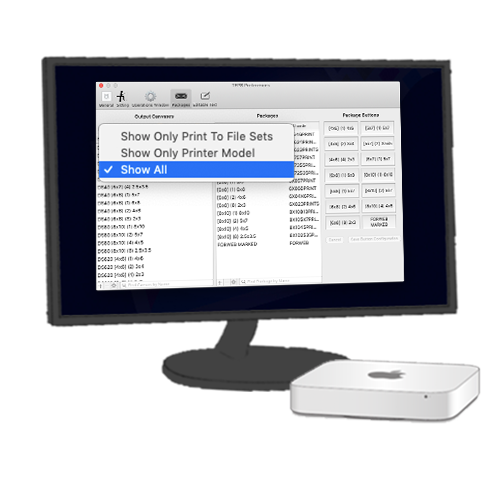
An output canvas is a template that has been assigned properties to be used when being use to save to file or print to a printer. Output canvases can be used to create packages. There are two main types of Output Canvases:
"Print To File Sets" are canvases that save the image to file or a path (like digital download images). If you select "Show Only Print To File Sets" you can see a new drop down menu that allows you to filter which path the images are saving to so you can only see those specific canvases.
"Printer Model" are canvases that are designed to print a printer. If you select "Show Only Printer Model" you can see a new drop down menu that allows you to filter which printer the canvases are linked to so you can only see those specific canvases.
CREATING NEW OUTPUT CANVASES
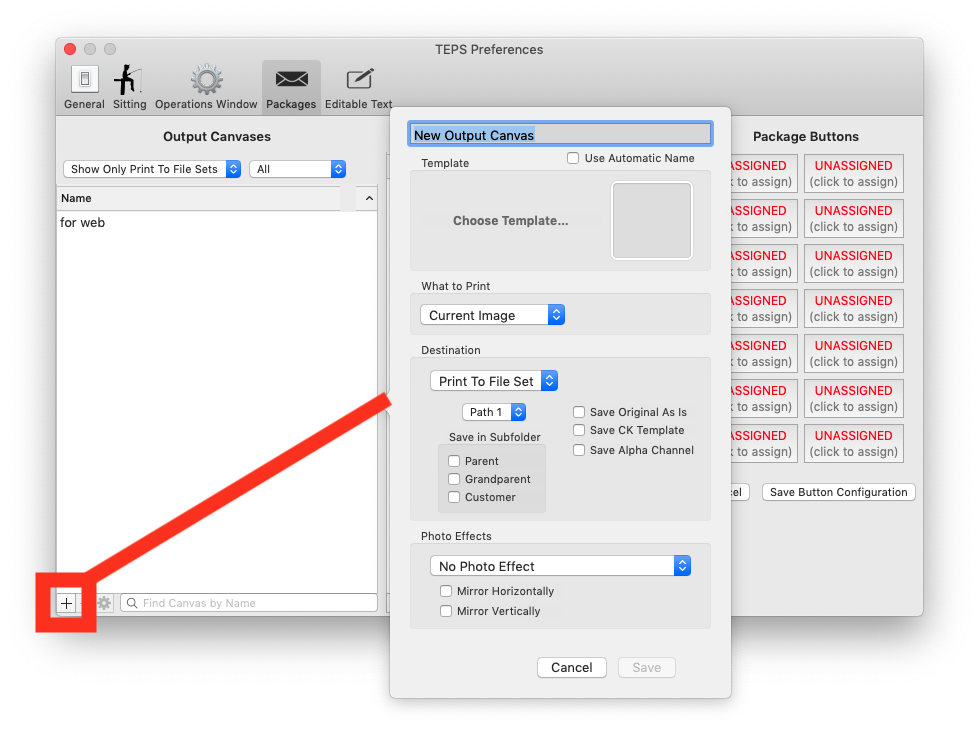
To create a new output canvas, select the "+" symbol in the lower left-hand corner. A new dialogue window will open with canvas setup options.
• CREATING NEW PRINT TO FILE
• CREATING NEW PRINT (DNP)
• CREATING NEW PRINT (OTHER PRINTERS)
CREATING NEW PRINT TO FILE
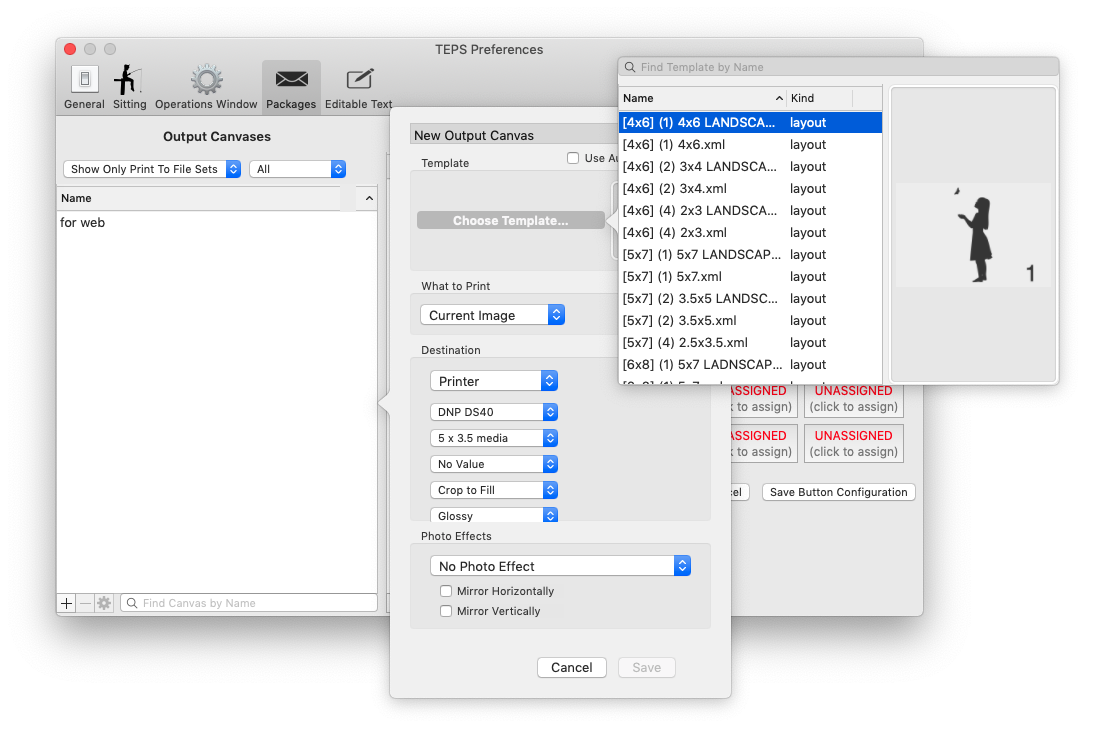
Assign the new canvas a unique name or check the box for "Use Automatic Name." Using an automatic name is a system generated name designed to help symbolize possible options of your canvas.
Choose Template
Press the dark grey words "Choose Template..." You will see a new window pop up with a list of your available "Print Templates" (See Templates for more information). Double click on your desired print template to select it.
Choose What to Print
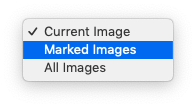
There are three options you can choose from:
"Current Image" whatever is in the preview / operation window will be printered
"Marked Images" all images marked with a check box will be printed
"All Images" all images will print
Set Destination Information
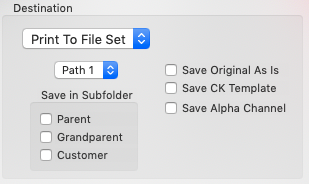
The destination for "Print To File Set" is "Print To File Set"
You can set up to eight different file Paths each path can be set separately in the TEPs Processor (see TEPS Processor for more information). Important note, is that your Path here needs to match your desired processor path.
⚠ IMPORTANT
You will need to set your path destination in the TEPS Processor. You can assign up to 8 paths, but each path will need to be set in the TEPS Processor.
Sometimes when saving images, you may need to save images in subfolders. "Parent" is the enclosing folder of your image. "Customer" is the client name. "Grandparent" is the enclosing folder 2 above where your image is located.
CUSTOMER FOLDER: /ABCD1234/ABCD1234_001.jpg
PARENT FOLDER: /PARENT/ABCD1234/ABCD1234_001.jpg
GRANDPARENT FOLDER: /GRANDPARENT/PARENT/ABCD1234/ABCD1234_001.jpg
Save Original As Is When this option is applied the original, unedited image is the image that is used to print to file
Save CK Template saves the selected image with any color adustments and how the image is composed in in the Preview Template window
Save Alpha Channel is used when working with Green Screen images. With Save Alpha Channel turned on, the image is saved as a transparent .png
ℹ INFO
If saving with "Alpha Channel" is enabled, your corresponding "Path" in the TEPS Processor should save the image as a .PNG file.
Select desired photo effects
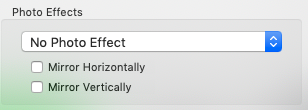
You can select desired photo effects such as the finish color. "Mirror Horizontally" flips the photo on the horizontal (X) axis. "Mirror Veritcally" flips the photo top dows (Y) axis.
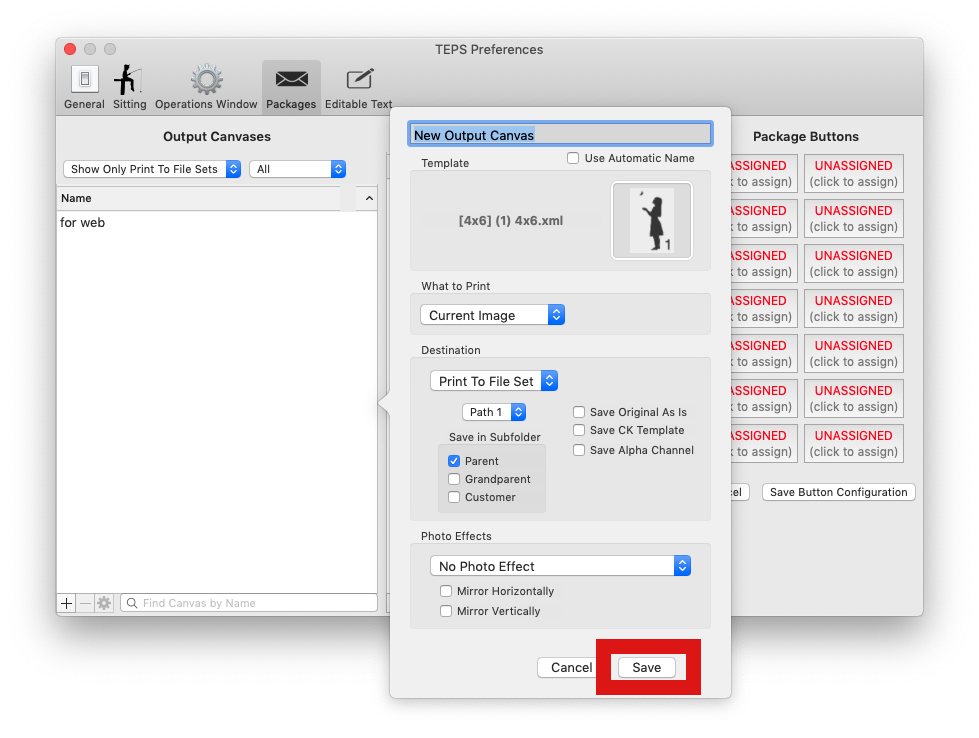
Click Save
You can now click "Save" to save this canvas.
CREATING NEW PRINT TO PRINTER (DNP)
Assign the new canvas a unique name or check the box for "Use Automatic Name." Using an automatic name is a system generated name designed to help symbolize possible options of your canvas.
Choose Template
Press the dark grey words "Choose Template..." You will see a new window pop up with a list of your available "Print Templates" (See Templates for more information). Double click on your desired print template to select it.
Choose What to Print
There are three options you can choose from:
"Current Image" whatever is in the preview / operation window will be printered
"Marked Images" all images marked with a check box will be printed
"All Images" all images will print
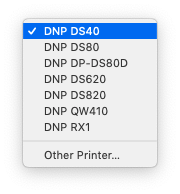
Select your Printer
Select your DNP Printer from the dropdown list
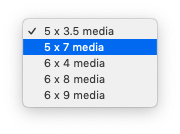
Select The Media Size
Select your media size from the drop down list
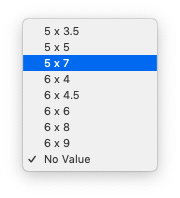
Select the cut
Select the size the printer should cut your media. (NOT YET IMPLEMENTED v1.3.7)
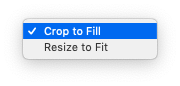
Select the crop
You can choose between "Crop To Fill" where the image will cut out extra or "Resize to Fit" may result in white space
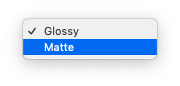
Select the finish
You can choose supported media finishes for your printer.
Select desired photo effects
You can select desired photo effects such as the finish color. "Mirror Horizontally" flips the photo on the horizontal (X) axis. "Mirror Veritcally" flips the photo top dows (Y) axis.
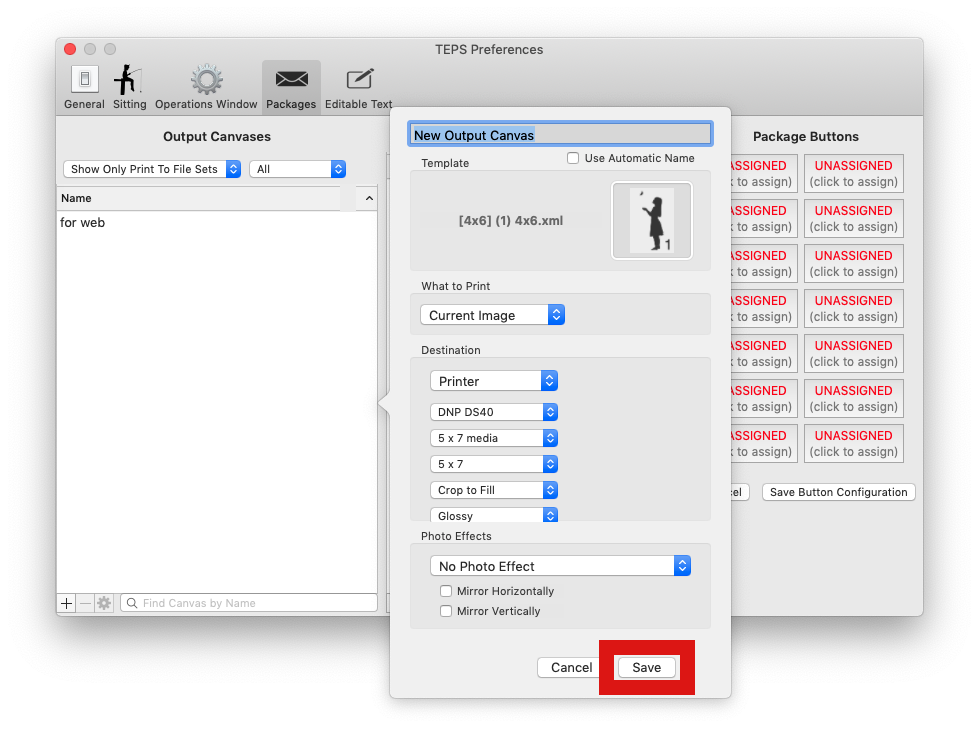
Click Save
You can now click "Save" to save this canvas.
CREATING NEW PRINT TO PRINTER (THIRD PARTY PRINTER)
Install your third party print drint driver and install your printer.
Then, assign the new canvas a unique name or check the box for "Use Automatic Name." Using an automatic name is a system generated name designed to help symbolize possible options of your canvas.
Choose Template
Press the dark grey words "Choose Template..." You will see a new window pop up with a list of your available "Print Templates" (See Templates for more information). Double click on your desired print template to select it.
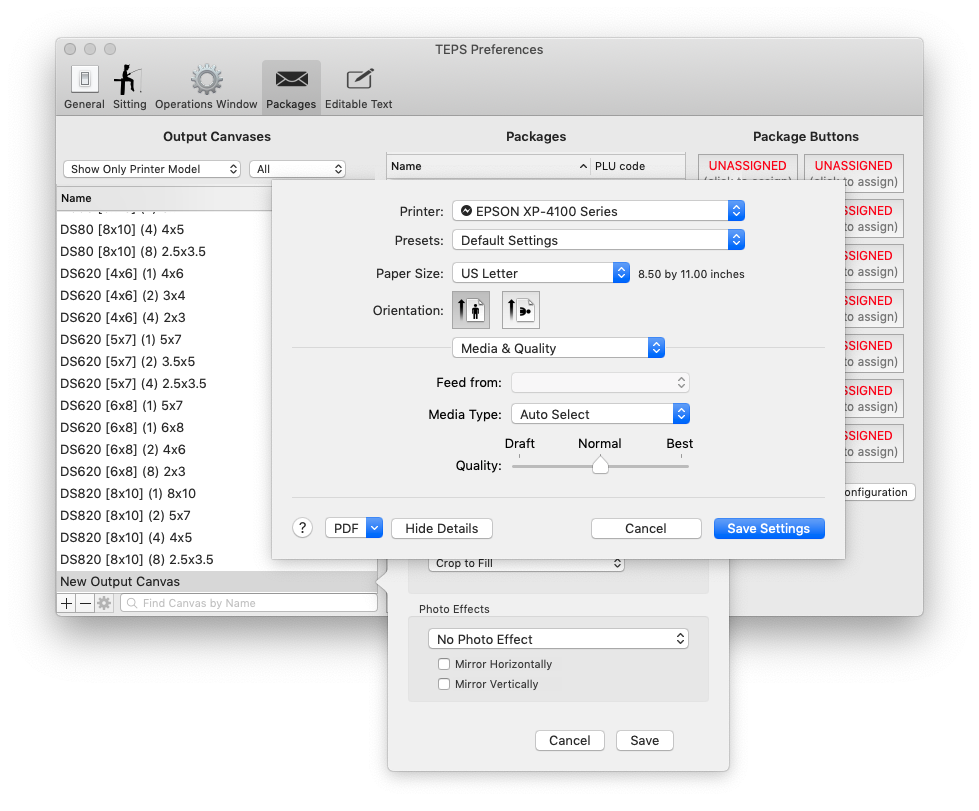
Select "Other Printer"
Under Printer, then select "Other Printer.
The built-in Apple CUPS dialogue window. Select all your necessary options and settings for your printer.
You'll need to repeat this for each size and template going to the printer.
Select desired photo effects
You can select desired photo effects such as the finish color. "Mirror Horizontally" flips the photo on the horizontal (X) axis. "Mirror Veritcally" flips the photo top dows (Y) axis.
Click Save
You can now click "Save" to save this canvas.
CREATING NEW PACKAGES
Once you have created your desired output canvases, it's now time to use those canvases to create 'packages.' A package consists of one or more output canvas. Packages are used for automatic printing, or to be used when pringing with TEPS. To get started press the "+" symbol on the package side.
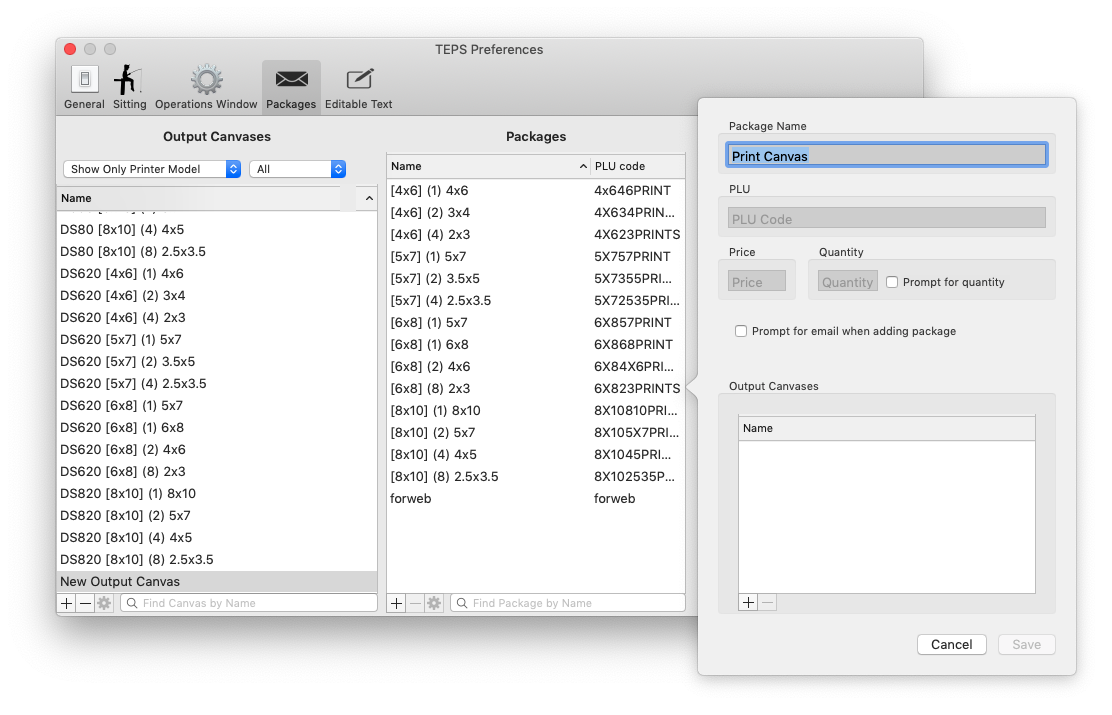
BUILDING A PACKAGE
Package Name Begin by assigning your package a unique name that you (or your operators) will use when printing.
PLU All packages must be assigned a PLU code. The PLU Code should contain only letters and numbers, no spaces, or special characters
Price You can assign an optional price field.
Quantity The default quantity when left empty is 1
Prompt for Quantity When checked, once the button is pressed when operating TEPS, the operator will receive a prompt for print quantity of that item.
Prompt for Email When checked, you will receive a TEPS Browser notification to enter a customer email.
! CAUTION
The Prompt of Email feature requires Bamboo and TEPS Browser to be installed on your computer. Want to learn more about Bamboo? LEARN MORE
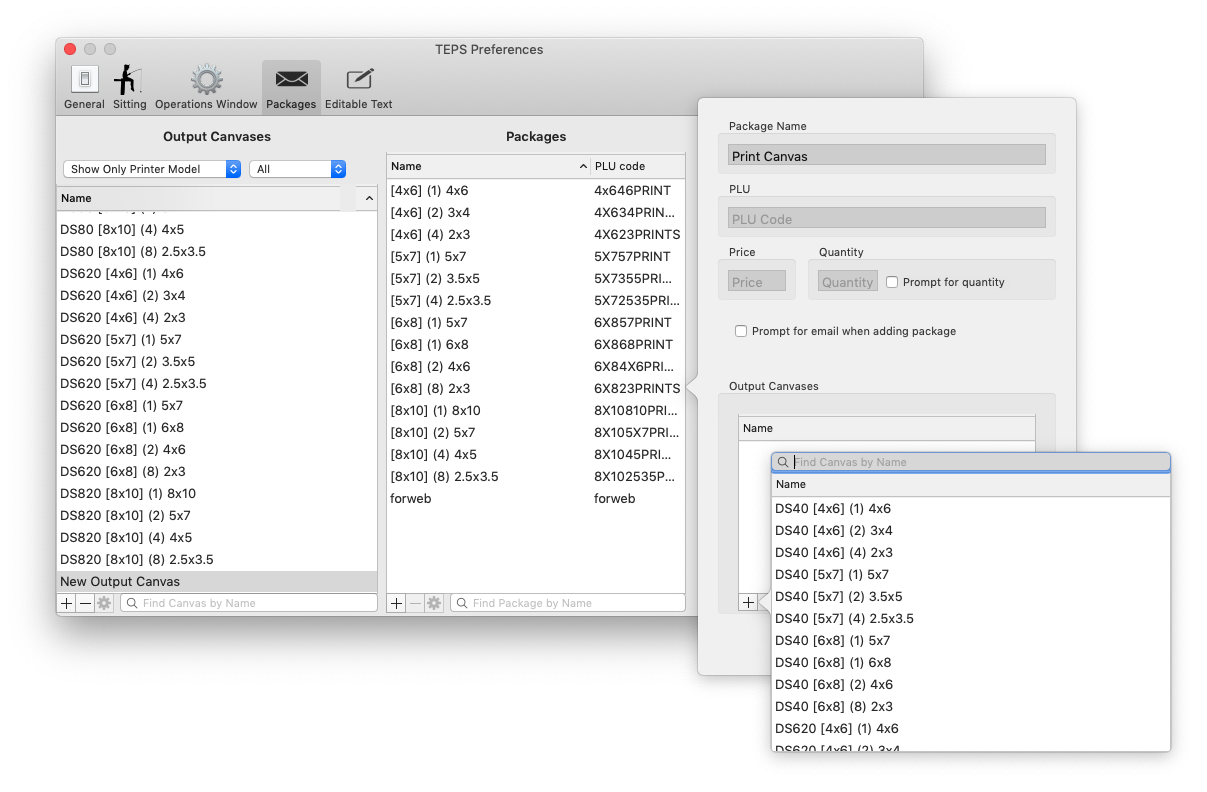
ADDITING A CANVAS OR CANVASES
To add a canvas press the "+" and then once you locate your print canvas double click on the canvas. If you want to add additional canvases, continue to press the "+" and select your print template for each item.
Should you make a mistake or wish to remove a canvas, highlight the canvas and then press the "-" symbol.
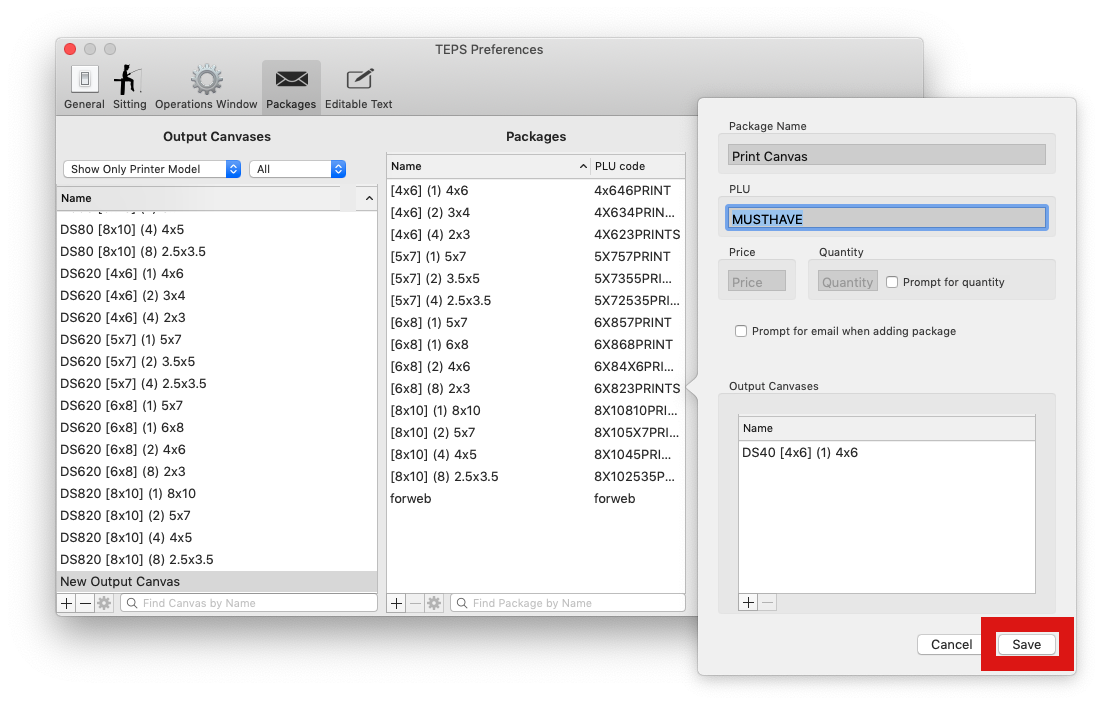
SAVE YOUR PACKAGE
Once you are satisfied that the package contains everything you wish to print, press the "Save" button.
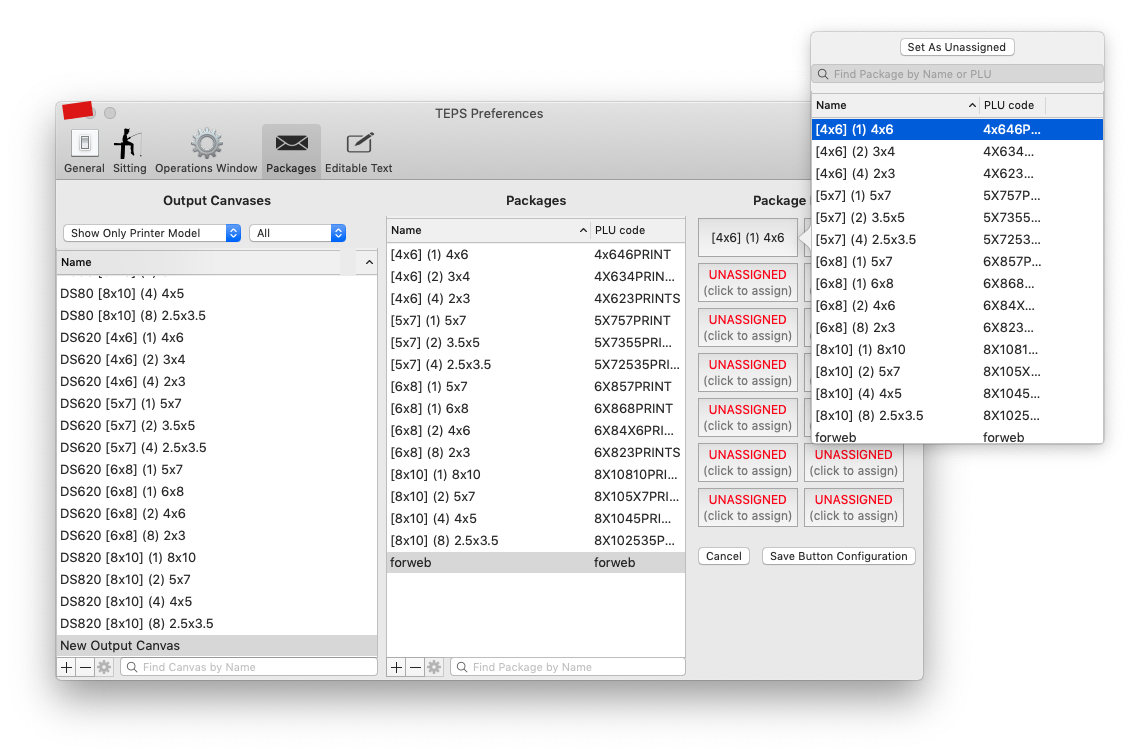
PACKAGE BUTTONS
Now that the packages have been created, you can assign them to package buttons for ease of use. Simply click on an "Unassigned" button, then double click on your package to assign it.
Once you have assigned all your desired package buttons click "Save Button Configuration"