
 Legacy guideTEPS X Share (legacy)
Upgrade TEPS X Share applications without replacing production folders
The applications-only installer path preserves the legacy TEPS production folders when updating an existing workstation.
In this article
Legacy applications-only upgrade
Legacy documentationThis procedure is preserved for systems that still run this software or hardware generation. Confirm the application and macOS version before making changes.
Just Upgrading TEPS?
Installer: APPS ONLYIf you're just upgrading TEPS, then you can customize the installation. Do not over write your important files; instead, during installation follow these instructions once on the "Installation Types" screen.
- Click on "customize" on the installer
- Unmark/Uncheck "TEPS Application Folders"
- Click "Install"
If you are installing TEPS for the first time, or on a new machine then you should perform a standard installation of all the files and folders.
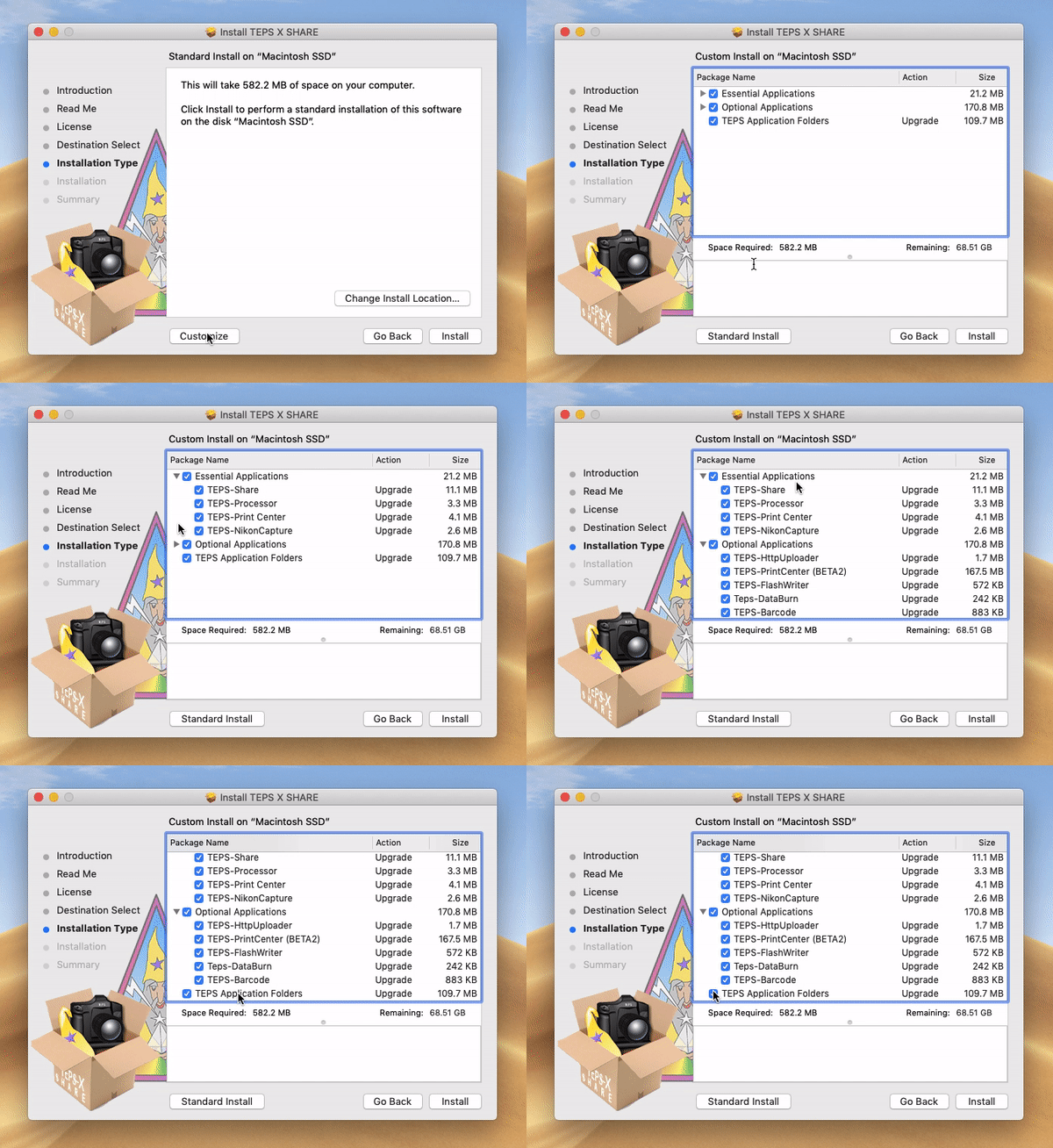 Advice: We would likely encourage you to back up your most important files before installing any new versions of the software in the event that this check box is not unmarked. To do this, first save a good set of preferences from TEPS X Share & TEPS Processor Share. For Teps X Share open the app and in the menu bar (on the top of your screen) click "Preferences" > "Save TEPS Settings To File"). For TEPS Processor, pause the processor then click on "Preferneces" in the menu bar (on the top of the screen) and click "Save Settings to File." Finally, in the TEPS OS X Share Folder back up the following Folders:
- CHROMAKEY TEMPLATES FOLDER ƒ
- NODES FOLDER ƒ
- TEMPLATES FOLDER ƒ
- TEPS GRAPHICS FOLDER ƒ
- TEPS PREFERENCES FOLDER ƒ
- *TEPS DATABASE FOLDER ƒ
(*if you use databases {not common})
Did this article solve the issue?I still need help →