
 Legacy guideTEPS X Share (legacy)
Perform a full TEPS X Share installation
Use this historical procedure only when installing or rebuilding a legacy TEPS X Share workstation.
In this article
Legacy full-installation procedure
Legacy documentationThis procedure is preserved for systems that still run this software or hardware generation. Confirm the application and macOS version before making changes.
Installing TEPS for the First Time
Installer: FULL INSTALLATIONIf you are installing TEPS for the first time, or have a new computer then you should perform a standard/full installation of all the files and folders of TEPS X Share.
Once you have opened the installer you will be prompted through several steps. However, you should just need to click the continue/next/install buttons along the way. Please read through the documentation carefully as you install the software.
- Introduction: Tells you what you are installing
- Read Me: Will give you all the most recent release notes
- License: Tells you what you are agreeing to by using the software
- Destination Select: (Should be your hard drive)
- Installation Type: Standard Install
- Installation: Will install the Software
- Summary tells you when complete
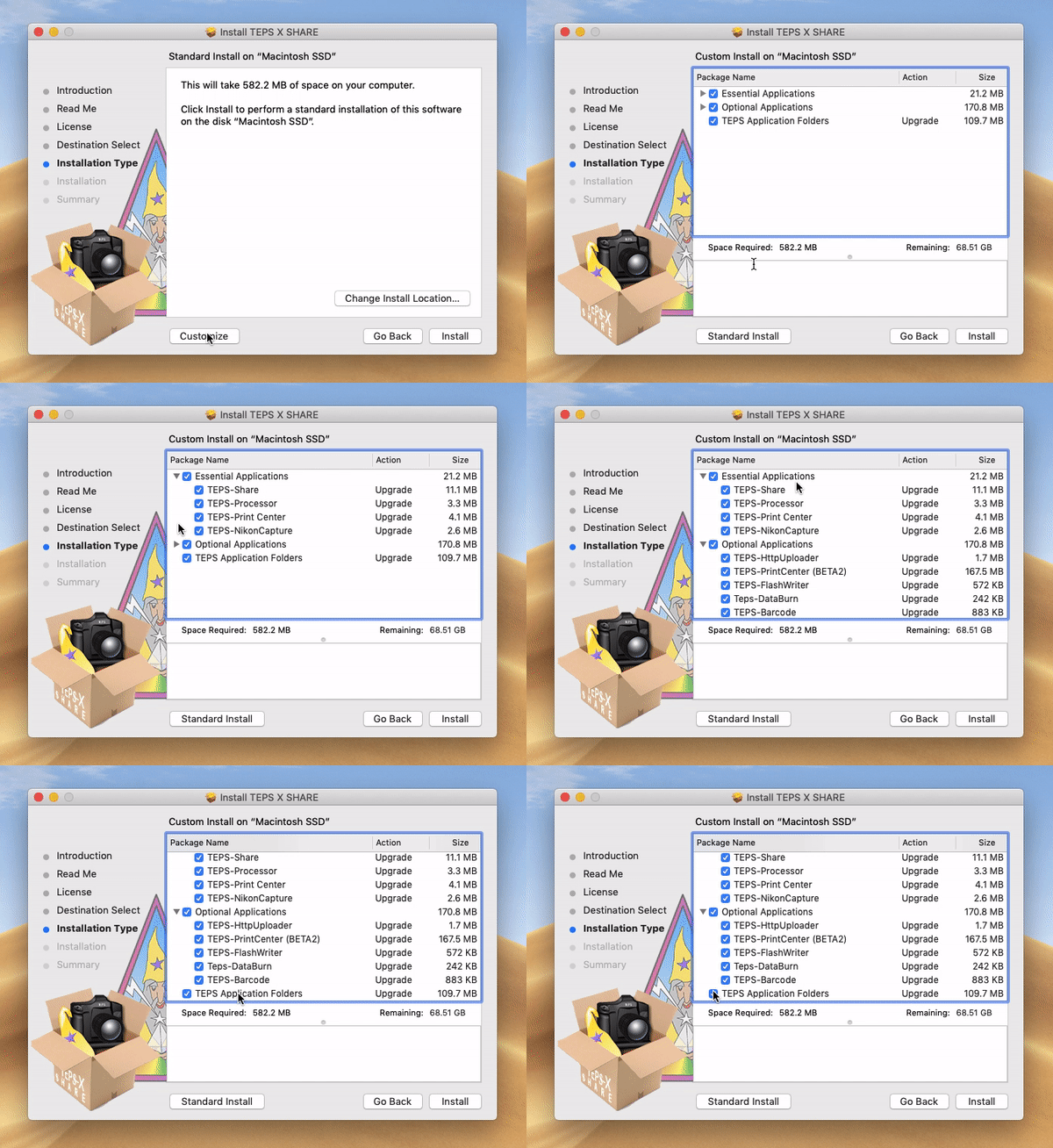
NOTE: The standard/full installation software does install Camera Frameworks and ColorSync profiles to be used with TEPS. These files may not be included if you choose to customize the installer. Advice: We encourage you to back up your most important files after getting your machine set up.
To do this, first save a good set of preferences from TEPS X Share & TEPS Processor Share. For Teps X Share open the app and in the menu bar (on the top of your screen) click "Preferences" > "Save TEPS Settings To File"). For TEPS Processor, pause the processor then click on "Preferneces" in the menu bar (on the top of the screen) and click "Save Settings to File."
Finally, in the TEPS OS X Share Folder back up the following Folders:
- CHROMAKEY TEMPLATES FOLDER ƒ
- NODES FOLDER ƒ
- TEMPLATES FOLDER ƒ
- TEPS GRAPHICS FOLDER ƒ
- TEPS PREFERENCES FOLDER ƒ
- *TEPS DATABASE FOLDER ƒ
(*if you use databases {not common})
Did this article solve the issue?I still need help →