
 Setup guideLicensing & updates
Move TEPS to a new computer
Complete the release while the old computer is still available. If it is unavailable, open a support request rather than repeatedly attempting activation.
In this article
On the current computer
-
Open the license screen from the TEPS welcome screen.
-
Record My License Number.
-
Select “DeActivate This Mac” and confirm the release.
On the replacement computer
-
Click the center of the TEPS welcome screen near the product name.

-
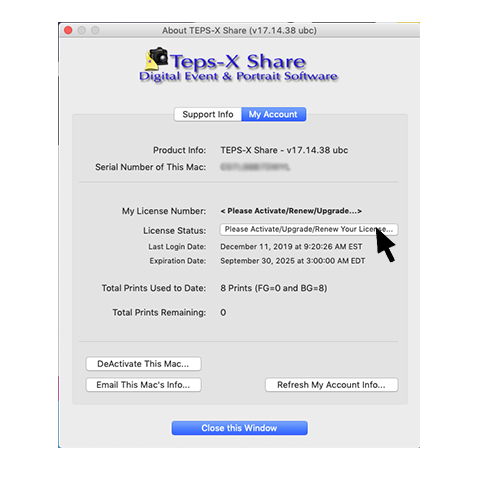
Select “Please Activate/Upgrade/Renew Your License.”
-
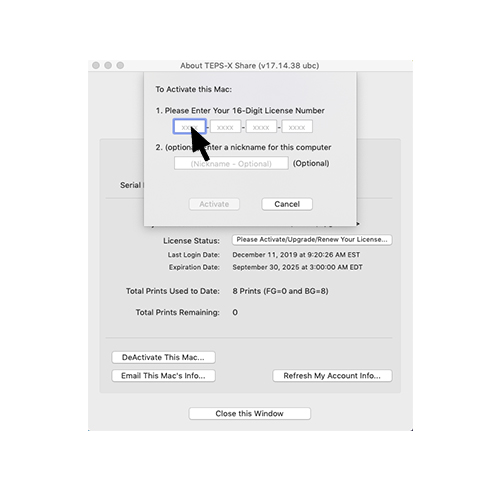
Enter the license key from your TriPrism purchase invoice.
-
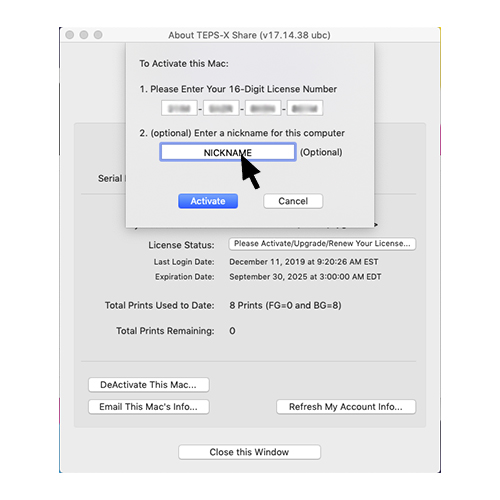
Optionally give the computer a descriptive nickname, then select Activate.
-
Confirm the message showing that the new key was created.

-
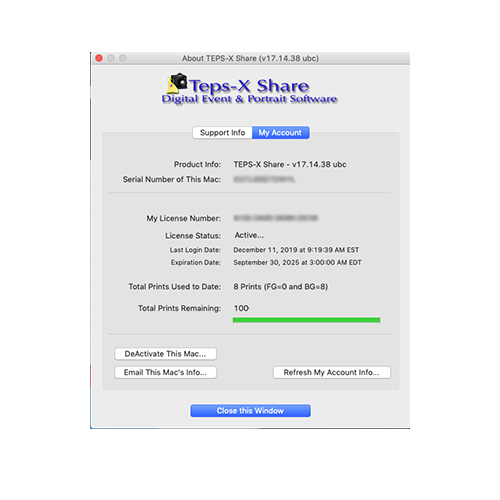
The license screen refreshes with an Active status and a green bar.
Did this article solve the issue?I still need help →