
 Legacy guideTEPS TriPrism
Upgrade TEPS TriPrism applications without replacing production folders
This original upgrade procedure distinguishes an application update from a full first-time installation and identifies the production data that must be preserved.
In this article
Applications-only upgrade
Legacy documentationThis procedure is preserved for systems that still run this software or hardware generation. Confirm the application and macOS version before making changes.
Just Upgrading TEPS?
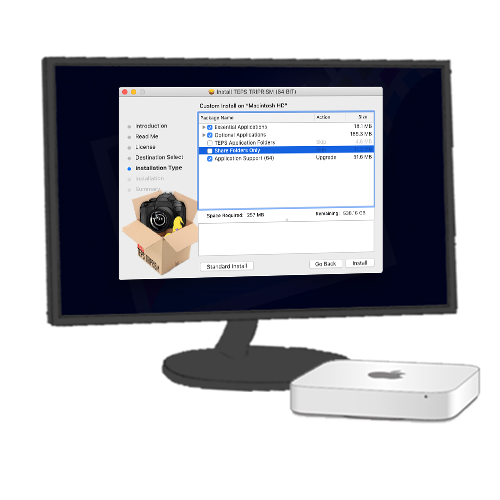
Installer: APPS ONLYIf you're just upgrading TEPS, then you can customize the installation. Do not over write your important files; instead, during installation follow these instructions once on the "Installation Types" screen.
- Click on "customize" on the installer
- Unmark/Uncheck "TEPS Application Folders"
- Unmark/Uncheck "Share Folders Only"
- Click "Install"
If you are installing TEPS for the first time, or on a new machine then you should perform a standard installation of all the files and folders.
 Advice: We encourage you to back up your most important files after getting your machine set up.
To do this, first save a good set of preferences from TEPS-Triprism. For Teps-Triprism open the app and in the menu bar (on the top of your screen) click "TEPS-Triprism" > "Save Preferences".
Finally, navigate to the "/Users/Shared" folder to back up the "Triprism" folder.
Did this article solve the issue?I still need help →