
 Illustrated manualTEPS Print Center
TEPS manual: Print Center
Original illustrated operating and troubleshooting reference for TEPS Print Center.
In this article
TEPS Print Center
PRINTER CENTER
TEPS PRINT CENTER
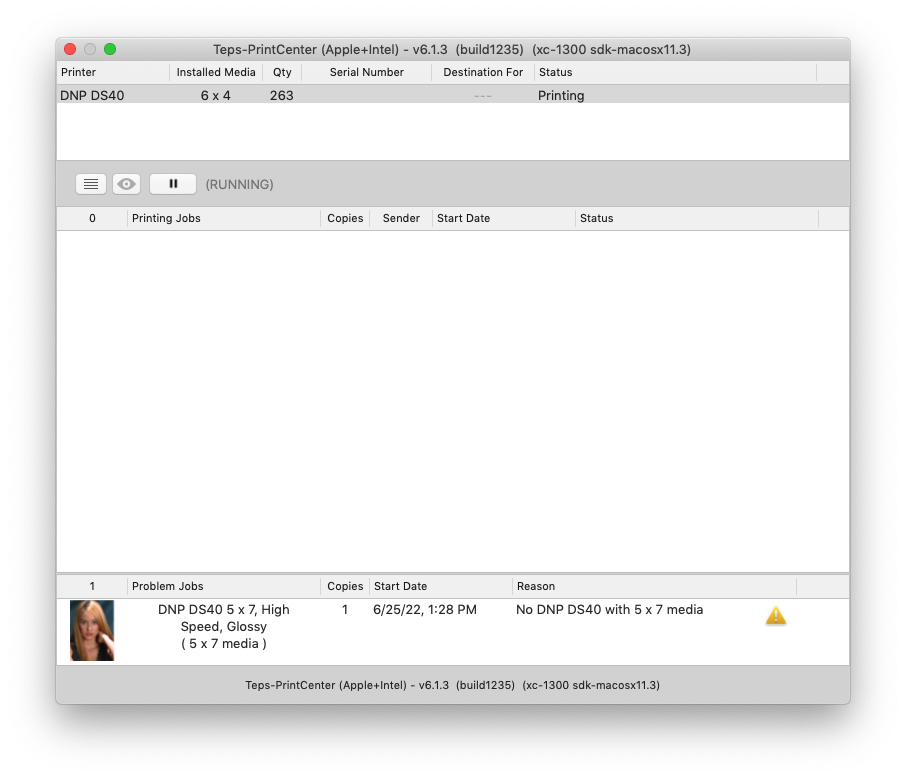
The TEPS Print Center is responsible for sending images to the appropriate printer with the correct media size. The TEPS Print Center is used for DNP printers and has the print driver built directly into the program.
PRINTERS
PRINTER LIST
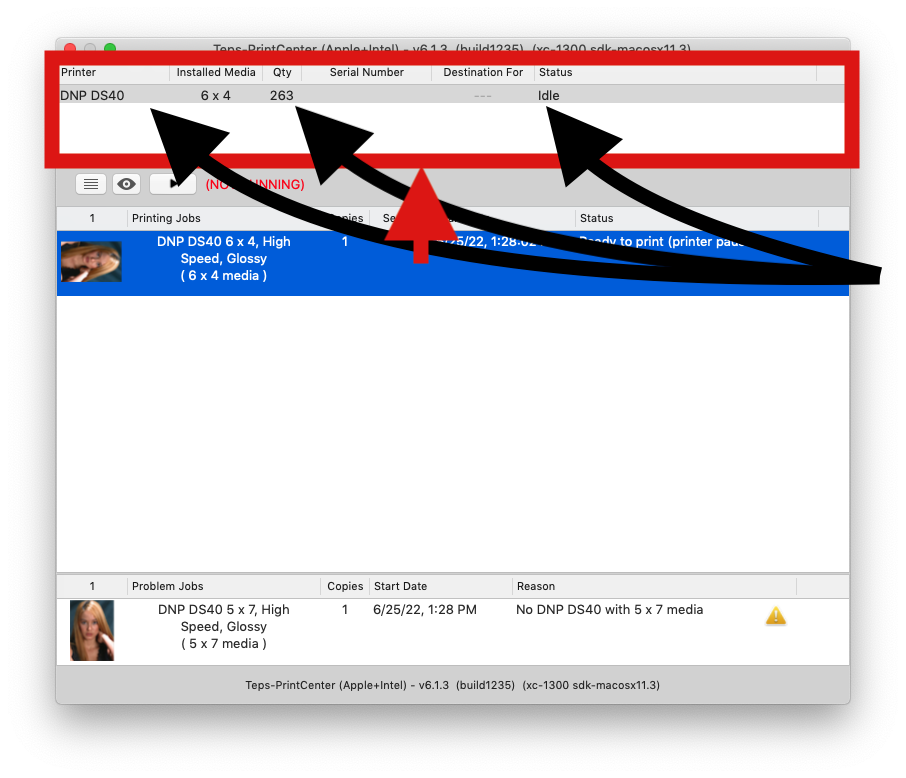
The top section of the print center lists all of your detected printers and details about each printer.
Printer shows you the printer name and type
Installed Media displays the sized of the media installed in the printer
Qty displays the remaining number of prints left on the roll.
⚠ IMPORTANT
DNP Printers require that you replace both the paper and the ribbon at the same time. Please make sure you are replacing both simultaneously according to manufacturer specs.
Serial Number displays the remaining number of prints left on the roll.
Destination For displays what serial number the printer has been set for (unless you have set this information, this field will be blank)
Status displays the current status of the printer and will display any errors / messages such as "Ribbon End" "Cutter Error" or "Printing"
ADDITIONAL MENUS
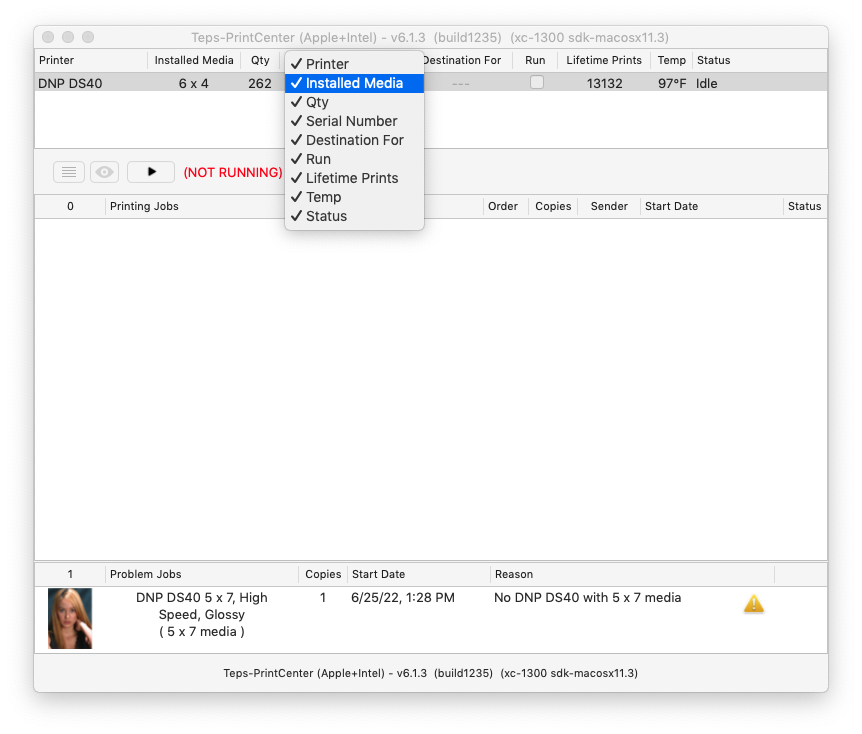
If you right click / secondary click on the printer list menu bar, you can see additional menu options that can be enabled.
Run is a non-selectable checkbox that shows if the printer is accepting new prints or not. (Checkbox Checked = accepting jobs // Checkbox unchecked = paused).
Lifetime Prints shows the total lifetime prints on the printers print-head.
Temp displays the current temperature of the printers Print Head.
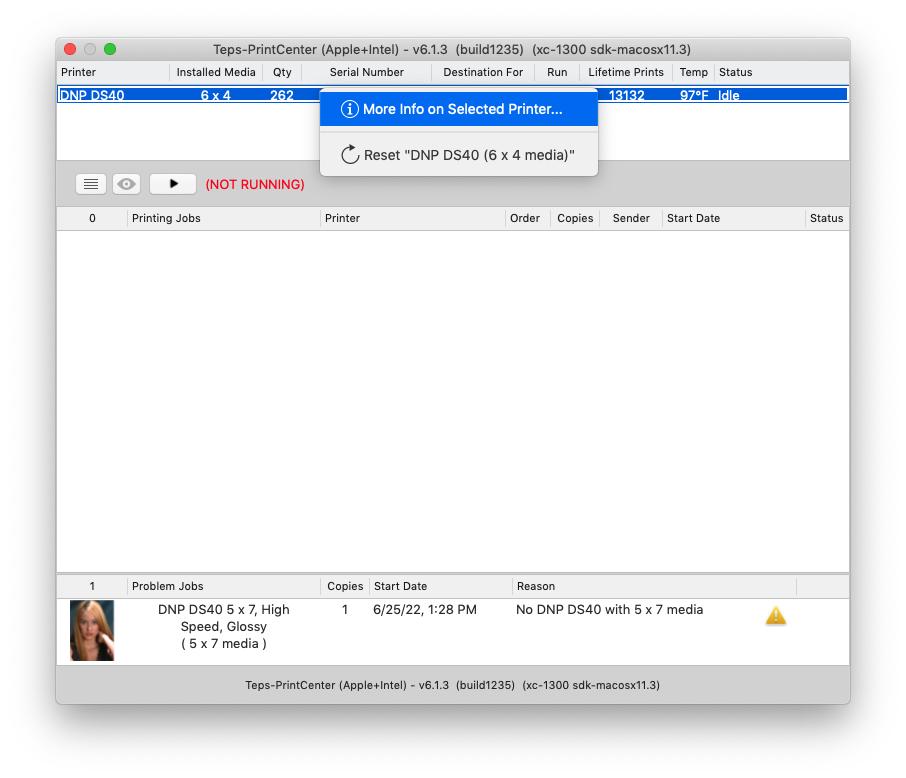
PRINTER OPTIONS
If you right click / secondary click on an individual printer you are presented with options speciifc to the printer.
More Info on Selected Printer.. displays additional detialed information about the specific highlighted printer and provides additional options for the printer.
Reset "PRINTER INFO" resets the USB of the selected printer.
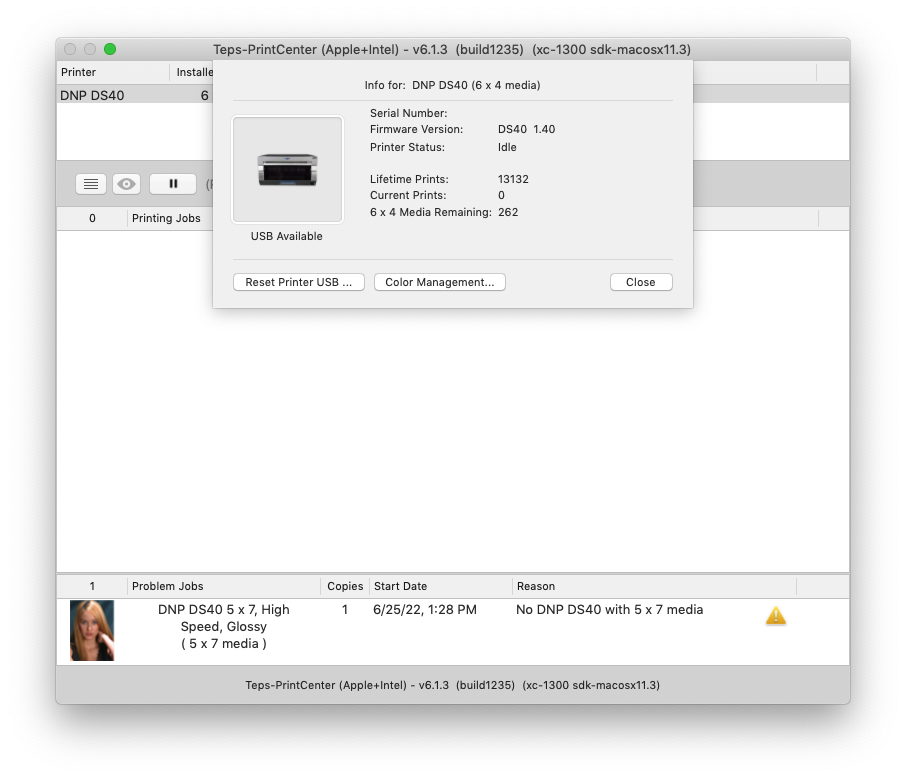
PRINTER DETAILS
This menu displays useful information about your printer including Serial Number, Firmware Version, and current printer status. Also, you can see your Lifetime print counts, Current Prints, and remaining media.
Reset Printer USB should the printer be locked up, or not responding; you may need to reset the printer USB. This can be accomplished through the "Reset Printer USB..." button
Color Management currently only uses DNP's built in ICC profiles designed specifically for DNP printers.
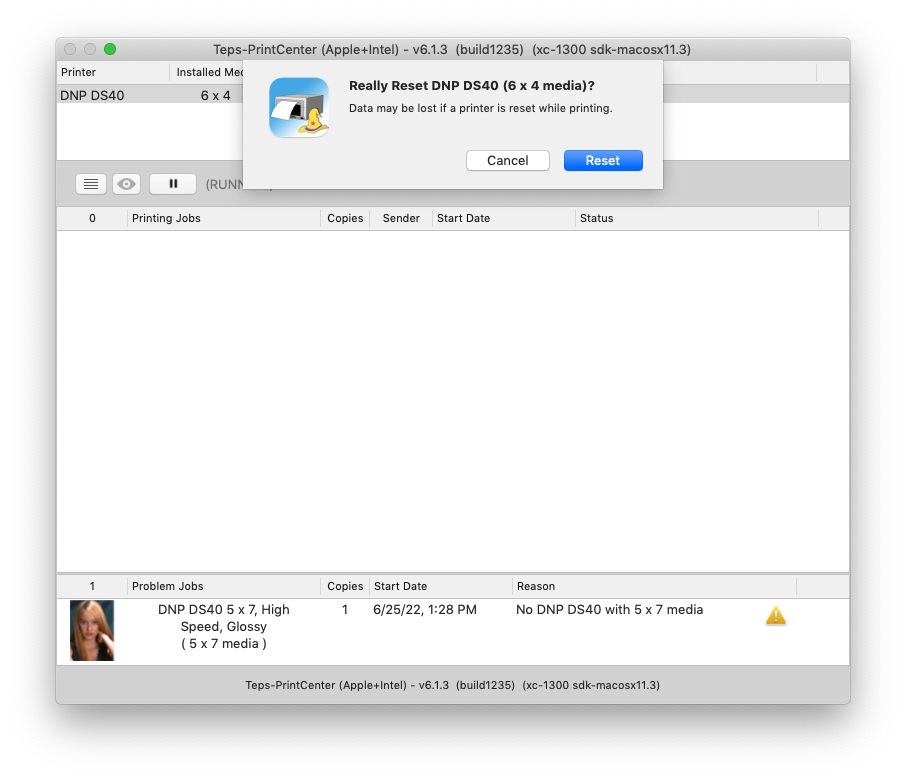
RESET USB
If you opt to try and reset the printer USB as a troubleshooting step; you will be presented with this dialogue window indicating that any print jobs will be lost. Once you continue, the printer will temporarily disappear from the print center before reappearing.
ℹ INFO
This may be beneficial when troubleshooting something like a locked up USB hub or something along those lines. However, this step should not need to be performed on a regular basis.
ACTION MENU
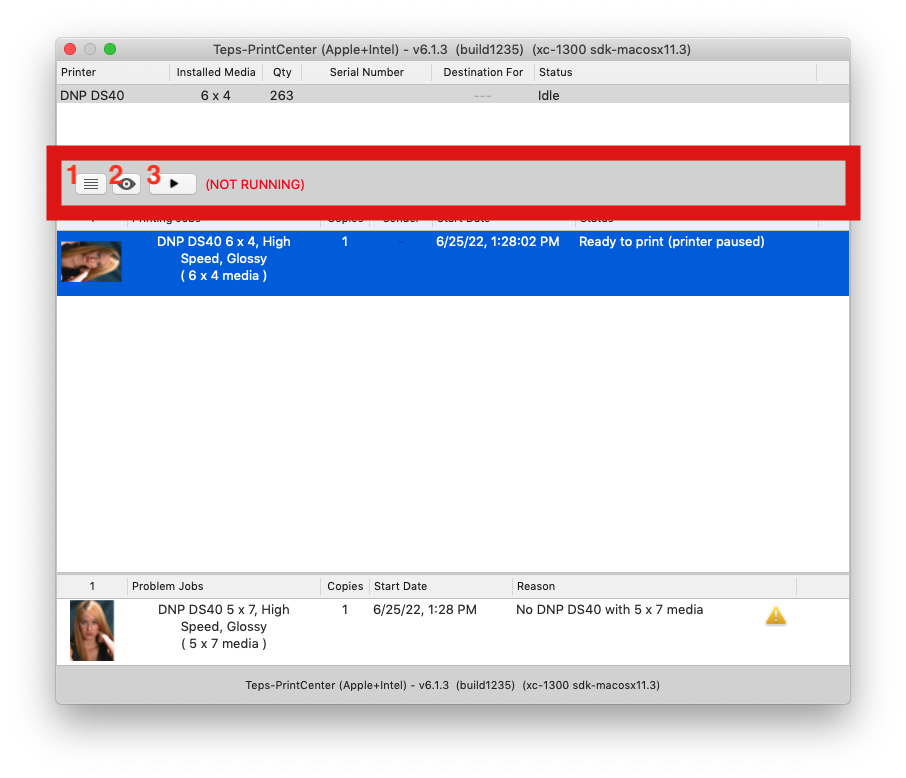
TEPS PRINT CENTER
The grey bar immediately below the printer list contains three options for you. From left to right: Preferences, Preview, Play / Pause
PREFERNECES the menu button is three straight lines vertically aligned. When pressed, it will bring up the PREFERNECES menu.
PREVIEW option allows you to quickly see a full screen render of either an active job or a problem job image. The button is greyed out (non-selectable) unless you first click on a photo that is being sent to the printer. Once you click on a photo, the photo will become highlighted and the preview button becomes active.
PLAY / PAUSE This button allows you to pause all print jobs going to the printer. During normal operations, the button will look like a pause button and to the right, you will see text that says (RUNNING). When the print center is paused, you will see a "Play" icon and there will be text in red that says (NOT RUNNING)
ℹ INFO
Sometimes when you're troubleshooting layout related questions, it's best a best practice to pause the prints. Once you pause the prints, you can send the test prints to your print center to quickly preview what they'll look like before printer. Don't forget to delete your test prints and resume your printer before proceeding to production!
ACTIVE JOBS
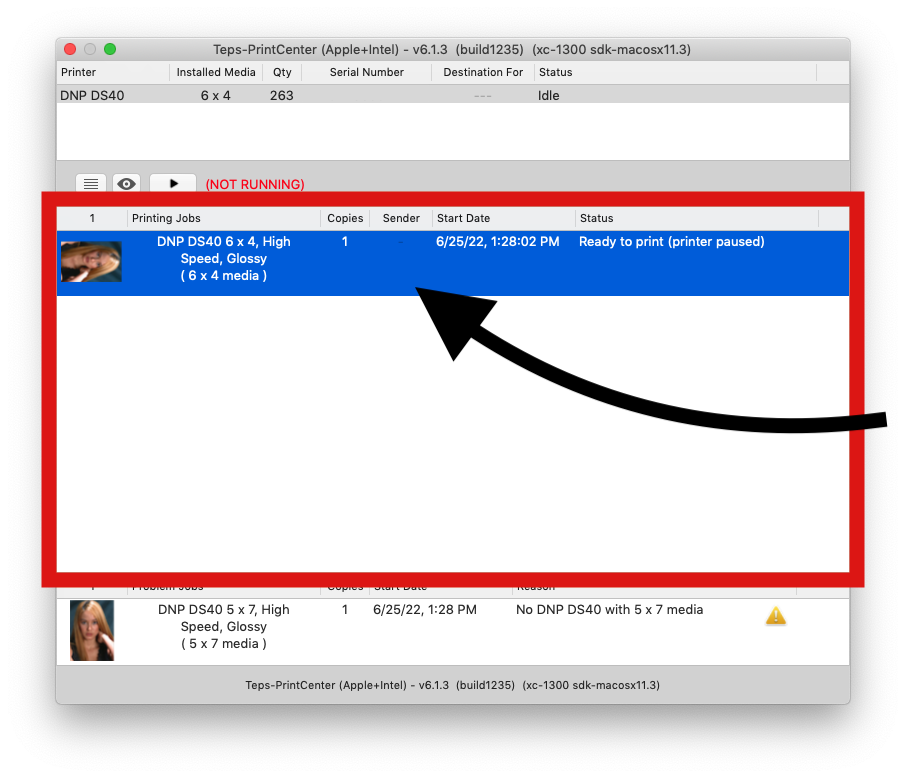
JOBS WAITING TO BE PRINTED
Print jobs that have been queued up and are waiting for a printer to become available are listed immediately below the action menu. All these jobs have been found to match a printer and are available to be printed.
MENUS
By default there are selection print detail menus that give you necessary information to print.
Thumbail the thumbnail is a visual representation of what will print.
Printing Jobs provides detailed information about te print including printer type, media size, finish, and media type.
Quantity displays the number / quantity of that print job to be printed
Sender displays the serial number of the device that sent the print job (when enabled)
Start Date displays the date and time the print job was sent
Status displays the current status of the print job.
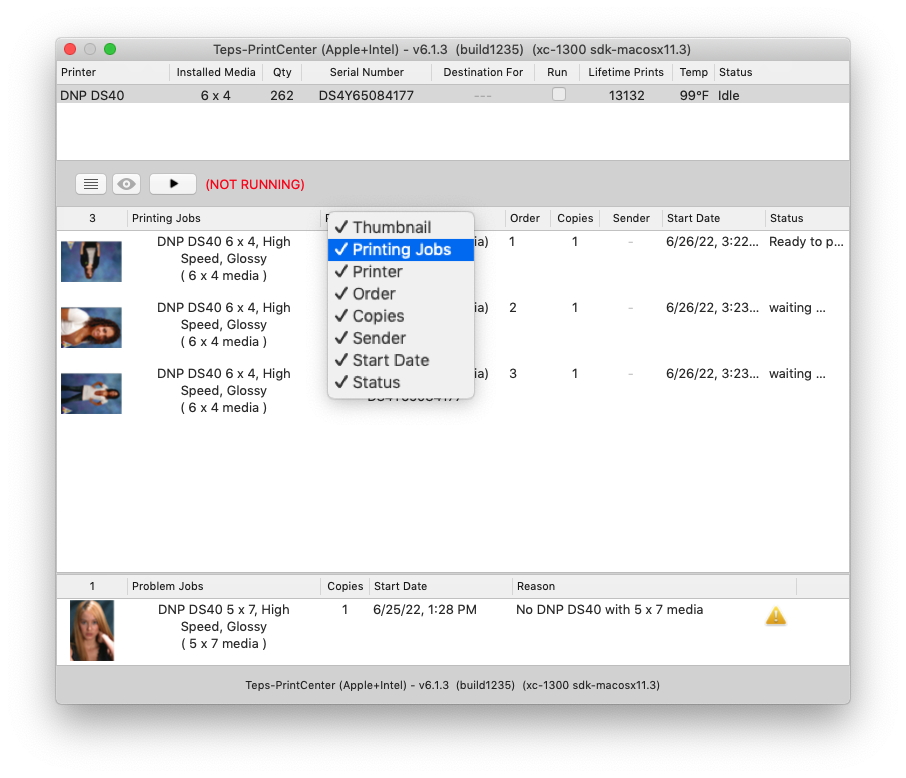
ADDITIONAL MENUS
You can add or modify the selected print jobs by right clicking on the menu bar and selecing additional options.
Printer displays the destination printer information including the serial number of printer to be printed to.
Order displays the order in which the images will be printed.
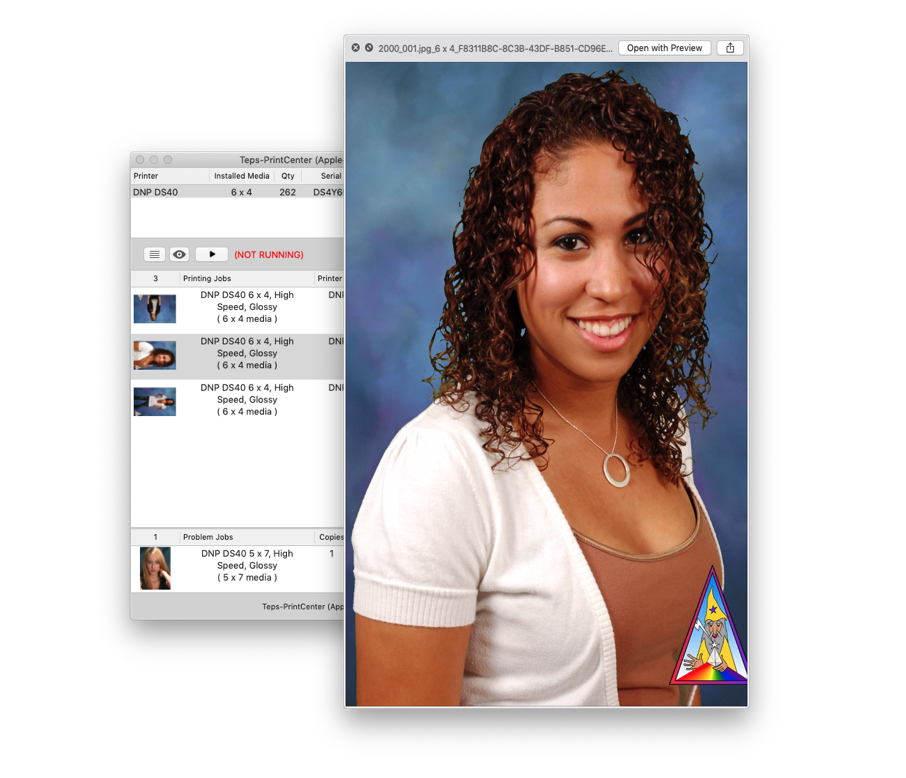
PREVIEWING PRINT
You can preview a job waiting to be printing by selecting / highlighting it and then pressing the "Preview" icon on the action bar above. Alternativetly, you can select / highlight the print job and then press your spacebar on your keyboard.
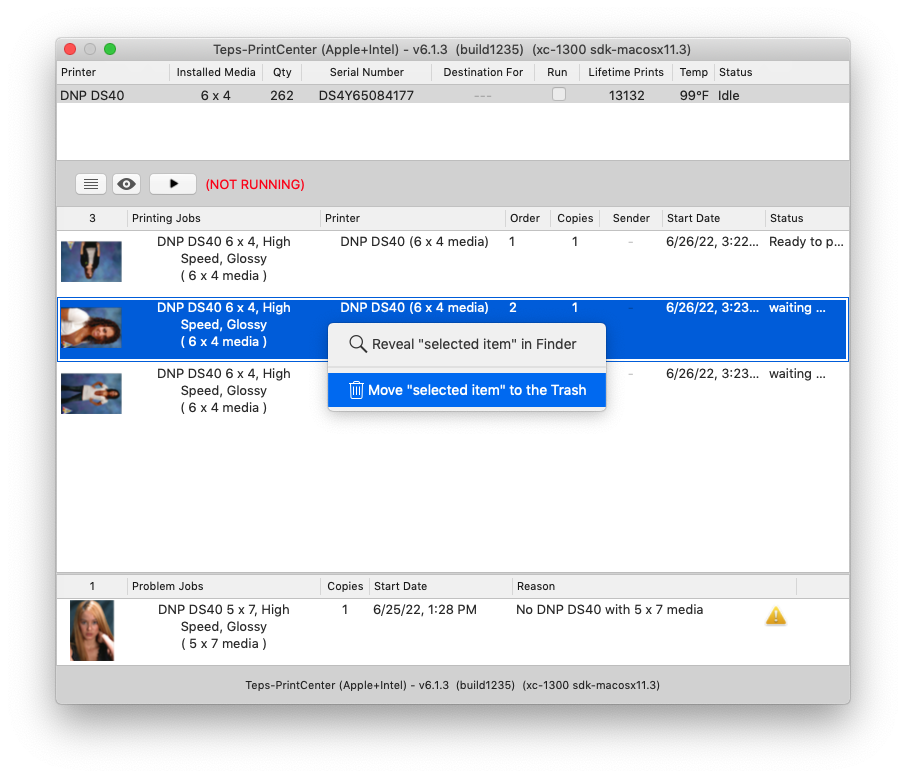
DELETING PRINT
To delete a print (or multiple prints), select / highlight the desired jobs, then right (secondary) click on the highlighted job and press "Move "selected item" to the trash"
PROBLEM JOBS
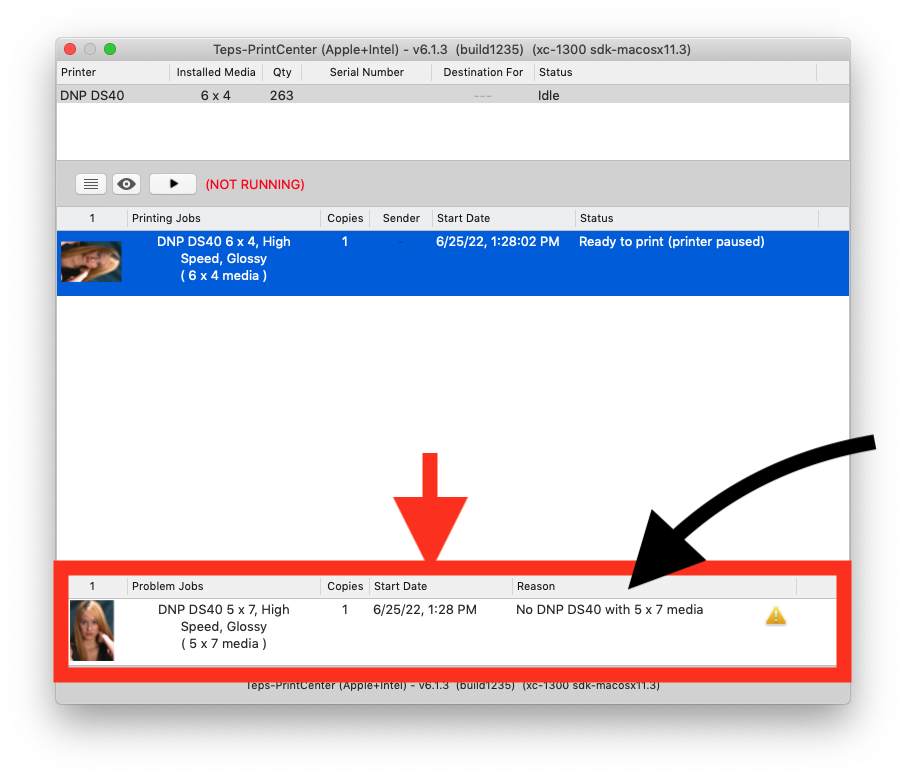
PROBLEM JOBS
The very bottom section shows up when the Print Center has indicated there are jobs that have problems associated witih them. The problem may be something such as media mismatch (Example: a photo was sent to a printer with 5x7 media; however, no printer with 5x7 media is turned on or installed). The reason for the issue is shown in the "Reason" field
Thumbail the thumbnail is a visual representation of what will print.
Problem Jobs provides detailed information about te print including printer type, media size, finish, and media type.
Copies displays the number / quantity of that print job to be printed
Start Date displays the date and time the print job was sent
Reason displays the current status of the print job and why this is a problem job.
PREFERENCES
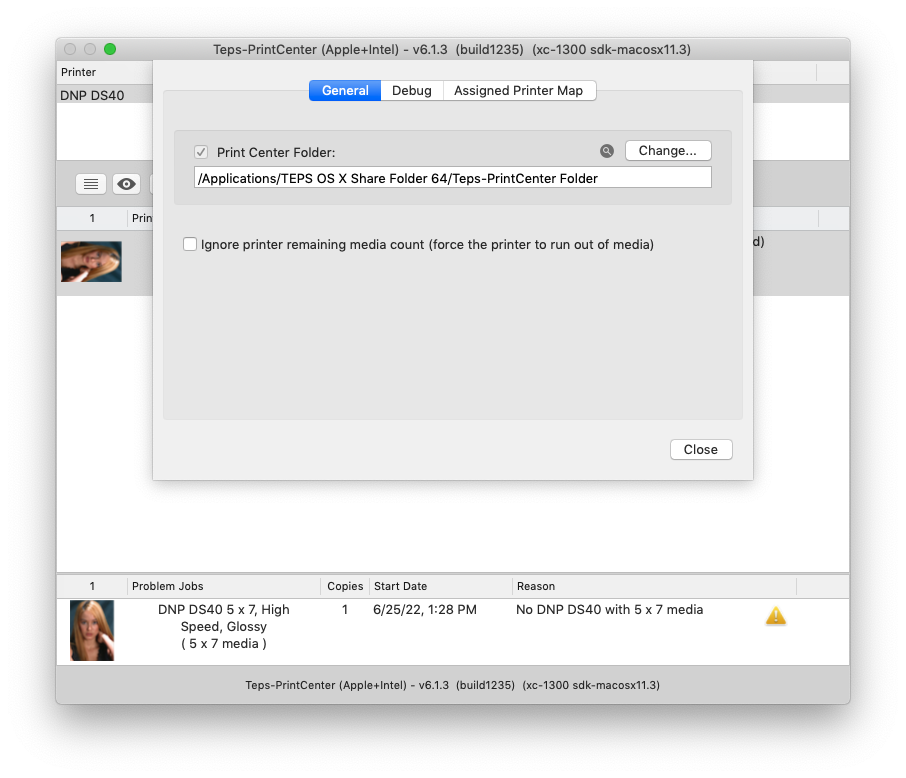
PREFERENCES » GENERAL
The TEPS Print Center has limited preferences in the prefernece menu. The Preferences menu can be accessedd by pressing the three lines on the action menu or by pressing "command" + "," ( ⌘ , )
The first panel "General" allows you to set the TEPS PrintCenter folder and determine the behavior of the printer should the printer run out of media.
Print Center Folder is where the TEPS PrintCenter folder is. This folder should match the location set in the TEPS Processor. For Single Computer operations the folder location is usually located:
/Applications/TEPS OS X SHARE Folder/TEPS PrintCenter/
For setups that have one or more sales stations and share the printers on one computer
/Users/Shared/Server Shared Folder/TEPS PRINT CENTER
Ignore printer remaining media count (force the printer to run out of media) This option forces the printer to run out of media which prompts the "paper" / "ribbon" warning light on the printer. This option will cause the last print to be lost. Otherwise, with this option turned off (default); the TEPS-PrintCenter will come to the front when the printer runs out of media.
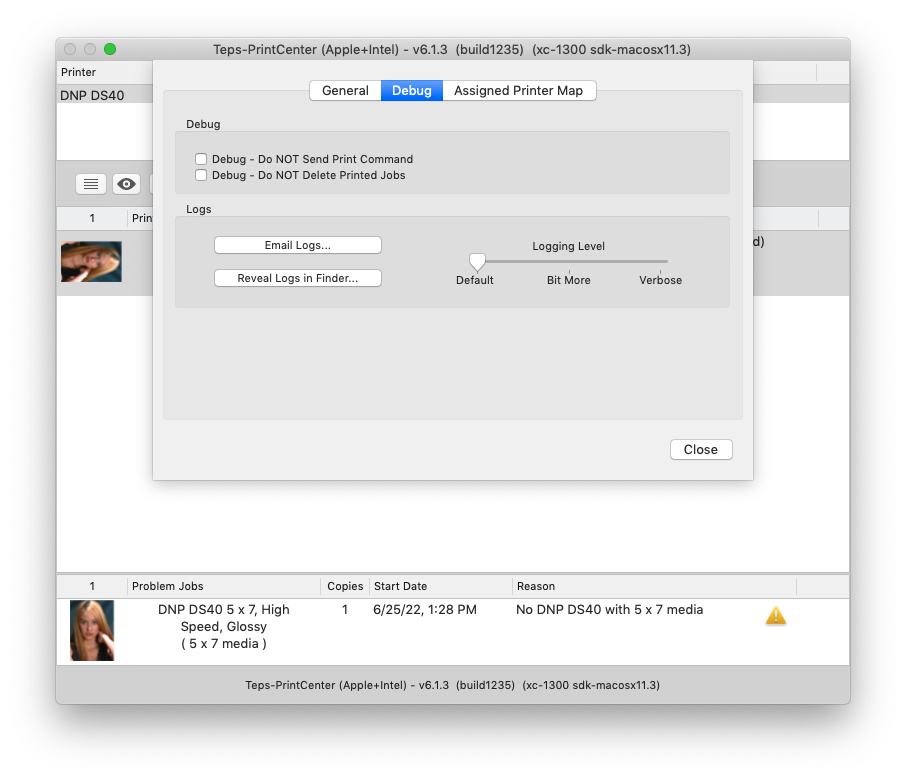
PREFERENCES » DEBUG
⚠ IMPORTANT
The following steps should only be taken under the guidance of technical support. There is very little (if any) benefit to enable these preferences without direction of support.
The Debug panel is used for troubleshooting and testing. It may be used by support to identify issues or for log files. This panel should not need to be accessed or used on a regular basis.
Debug - Do NOT Send Print Command this option does not send the print command to the printer. It is used in troubleshooting.
Debug - Do NOT Delete Printed Jobs this option prints the image but does not delete the printed job file. If this option is turned on, the printed images are never deleted (Not recommended for regular use).
PREFERENCES » LOGS
⚠ IMPORTANT
The following steps should only be taken under the guidance of technical support. There is very little (if any) benefit to enable these preferences without direction of support.
The Teps-PrintCenter logs files for troubleshooting purposes. These log files are very small and reset/delete on a regular basis. By default, the logging level should be set to Default
Email Logs... In the event you encounter an error, support may request you email us the log files. Pressing this button automatically gathers the log files to be emailed.
Reveal Logs in Finder... this button reveals the folder location on your computer. You can manually navigate to this path at the following url.
~/Library/Logs/Teps/Teos-PrintCenter.log
Logging Level this slider adjusts how much information is logged. The default setting is the lowest, only identifying information necessary for the application to run properly and identify high level issues. Should you encounter issues, support may request you set logging to "Bit more" or "Verbose" level loggin. The middle level logging "Bit more" contains information to pinpoint more complex issues. "Verbose" logging shares everything that is occurring. Keep in mind, the more information that is logged, the larger the files become.
★ Did You Know?
Our support team is here for you when you need them most. Technical support is offered Monday-Friday (9:00AM - 5:00PM Pacific Time) for phone support. You can also contact support any time through email here.
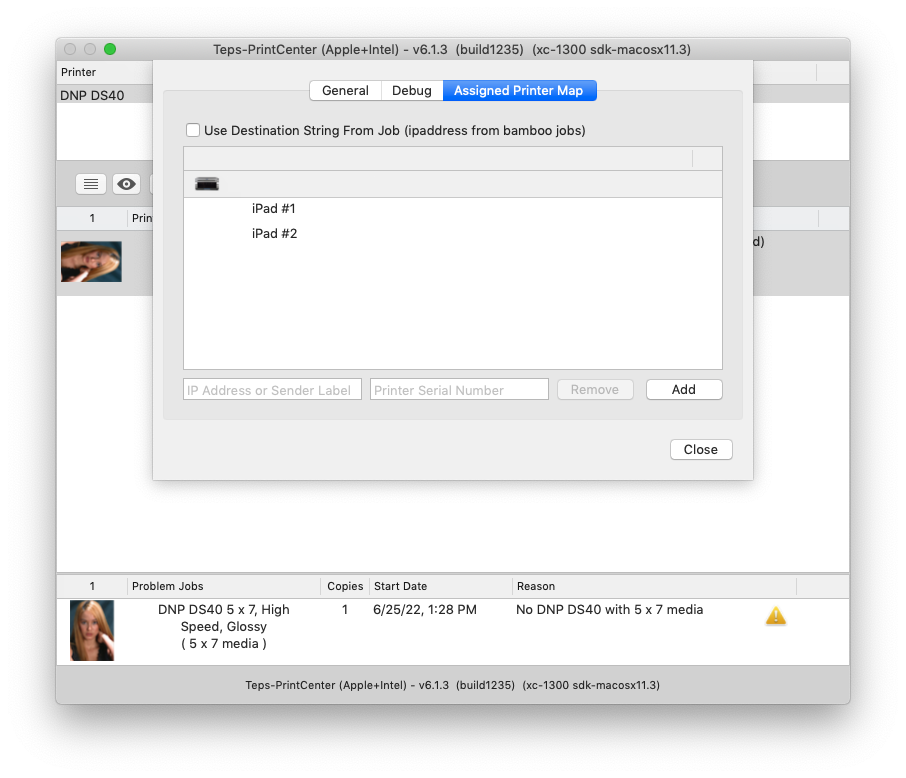
PREFERENCES » ASSIGNED PRINTER MAP
! CAUTION
This feature requires the use of Bamboo. Learn more about Bamboo HERE.
The Assigned printer map is a Bamboo specific feature. It allows you to take different selling devices, (mobile phones, tablets, or computer) and have each of those devices assigned to a specific printer.
Use Destination String From ob (ipaddress from Bamboo Jobs) This check box turns on / off the feature for Bamboo jobs to be assigned a specific printer
In the preview window you can see the default printer along with devices that assigned to that printer.
To add additional printers, or sending devices, enter the IP address on the left, and the printer's destination IP address on the right and then click "Add." Use the remove feature to delete extra (or incorrectly placed) source folders.